Settings & Configuration
Customize Bear Decisions to match your workflow preferences and analysis requirements. Configure discount rates, manage VBA macro execution, and adjust interface options.
Analysis Settings: NPV Discount Rates
Configure the discount rates used for Net Present Value (NPV) calculations in your transformations and visualizations.
Managing Discount Rates
- Edit Default Rate: Change the initial 10% rate to match your organization's standard
- Add Additional Rates: Click "Add Rate" to include alternative discount rates for sensitivity analysis. All configured rates appear in the Transform Data dropdown for visualizations
- Remove Rates: Use the delete button (🗑️) to remove rates you no longer need
- Rate Format: Enter rates as percentages (e.g., 12 for 12%)
⚠️ NPV Rate Strategy
Consider adding multiple rates if your analysis involves different risk profiles or if you want to test sensitivity to discount rate assumptions.
Common approaches include using your organization's WACC, risk-free rate, and a risk-adjusted rate.
Inputs Settings: Default Values
Configure the default values used for the variables in your inputs.
Units
Similar to the inputs screen, you are able to define and edit the default units for the variables and results in your inputs. On first definition of a unit, this is treated as a default for all subsequent variables/results. Defaults can be overridden on an individual basis within the Inputs screen. Changes to the default units will be reflected in the inputs screen (and results/analysis). Deleting the default will revert all linked variables/results to 'None'.
Reference Values
Similar to the inputs screen, you are able to define and edit the default reference values for the variables and results in your inputs. On first definition of a set of reference values, this is treated as a default for all subsequent variables/results of the same length. Defaults can be overridden on an individual basis within the Inputs screen. Changes to the default reference values will be reflected in the inputs screen (and results/analysis) - including updating the periodicity of the values. Deleting the default will revert all linked variables/results to 'N/A'.
You are able to define multiple default reference values for different lengths of variables/results.
Calculation Settings: Macro Execution Mode
Enable this setting if your Excel model contains VBA macros that need to run during Bear Decisions' calculations.
⚠️ Microsoft API Limitation
Microsoft's Office Add-in APIs do not allow direct triggering of VBA macros from add-ins. When Macro Execution Mode is enabled, Bear Decisions will pause during calculations to allow you to manually execute your macros, then continue once you confirm completion.
However, with some VBA code integration, you can achieve automatic macro execution that runs seamlessly during analysis.
How Macro Mode Works
- Enable the Setting: Turn on "Enable Macro Interruption" in Settings
- Start Your Analysis: Begin the calculation process normally
- Manual Execution: When prompted, manually run your required macros
(see Automatic Macro Execution for more details about making this seamless) - Continue Calculation: Click "Continue" to resume Bear Decisions' analysis
- Repeat as Needed: This process occurs for each iteration of the analysis
💡 Macro Mode Setup & Best Practices
- Test First: Run a small analysis to understand the macro execution flow
- Document Macros: Keep notes on which macros need to run and in what order
- Consider Alternatives: Where possible, replace macro logic with native Excel formulas for smoother automation
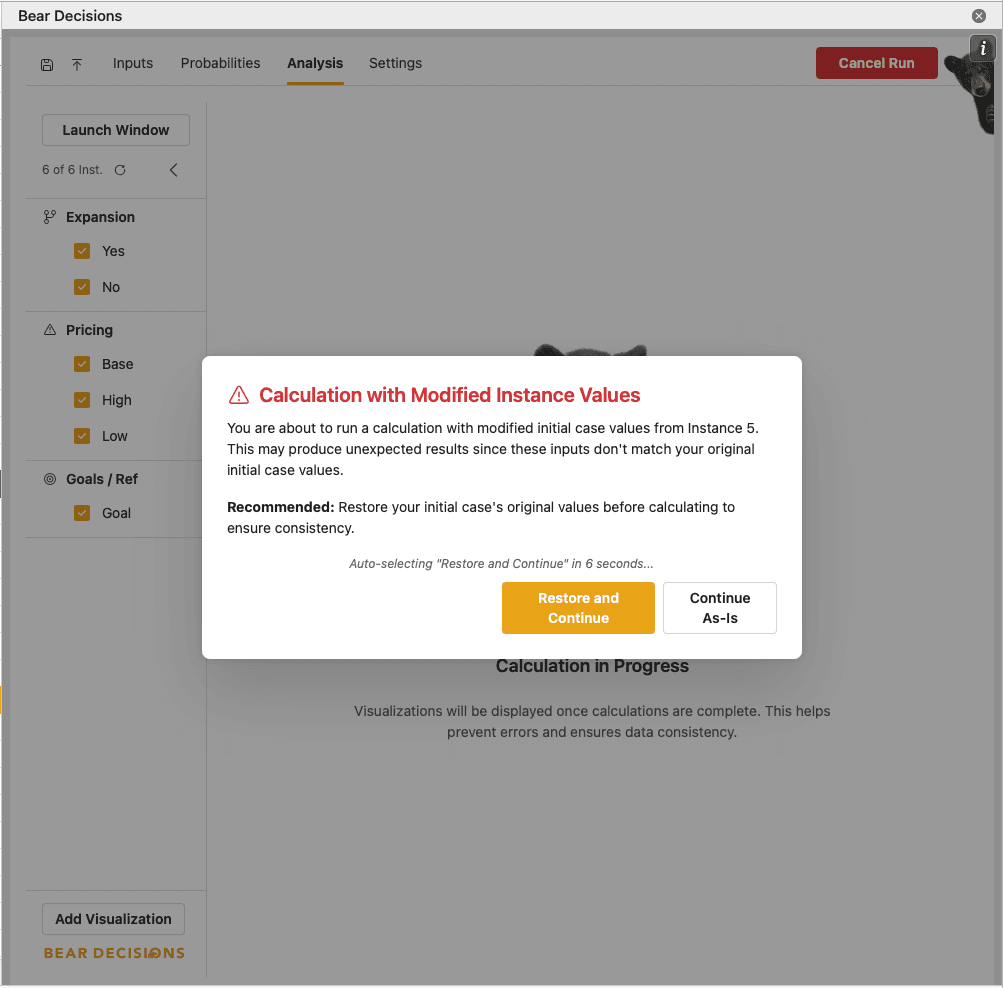
Calculation Settings: Automatic Restore and Continue
Enable this setting if you wish your Excel model to always restore the initial case values for each variable rather than retaining any changes due to the selected instance option.
If this setting is disabled, you will be prompted manually on calculation start to restore the initial case values.
User Interface Settings:
Discoverable Tooltips
Control whether Bear Decisions displays detailed tooltips and guidance within the Inputs screen.
Tooltips are enabled by default. You can turn them off if you prefer.
Instance Listing
Control whether Bear Decisions displays a full list of the instances associated with the hovered point/value within the visualizations.
A compact listing is enabled by default, with the list only shown if it is short (i.e. less than 12 instances), else a count of the contributing instances is displayed.
Export Options:
Bear Decisions is able to export all the data from your calculations to table(s) in your Excel workbook.
The two options are:
- Export all data to a single table
- Export data to multiple tables
The single table option is great for those who quickly want to add to a pivot table or share without worrying about the data being joined. This structure means that you can re-export and refresh the data in your pivot table for seamless updates.
The multiple tables option is great for those who want to keep the data efficient and likely want to feed it into a more complex process e.g. PowerBI, Tableau, or other analytics tools.
Developer Settings: Debug Logging
Enable detailed logging for troubleshooting purposes. This setting is primarily used for technical support and issue diagnosis.
⚠️ When to Enable Debug Logs
- Default State: Keep debug logging disabled during normal use
- Issue Reporting: Enable only when requested by support for troubleshooting
- Privacy Consideration: Logs may contain details about your model structure and data
Debug Log Process
If you encounter issues with Bear Decisions:
- Contact Support: Reach out describing the issue you're experiencing
- Enable Logging: Turn on "Show Debug Logs" in Settings
- Reproduce Issue: Go through your workflow to capture the problem
- Share Logs: Press the "logs" button and paste into a text file or similar to provide the debug information to support
- Disable Logging: Turn off debug logs once troubleshooting is complete
Next Steps
If your workbooks rely on VBA during iteration, configure Automatic Macro Execution next.
If you do not use iterative macros, you can skip that section. You have completed the User Guide!