Strategies & Timings
Strategies let you sequence when decisions are made and uncertainty areas resolve, value staged commitments under imperfect information, and compare automated recommendation paths against your tracked goals.
Strategy mode is optional.
If you prefer a simpler analysis—classic combinations of decisions and uncertainties without staged timing or optimization paths—leave strategies off and continue straight to Probabilities & Signals, then dashboards and analysis as usual.
Nothing in this section is required for a valid run.
It may even make sense to skip this the first time you run a new analysis, then once you have explored the results and have a better understanding of the key decisions that need to be made and the critical risks that you need to manage, you can then come back and add the strategies capability to help guide the decision making process - and improve the range of outcomes that you can expect.
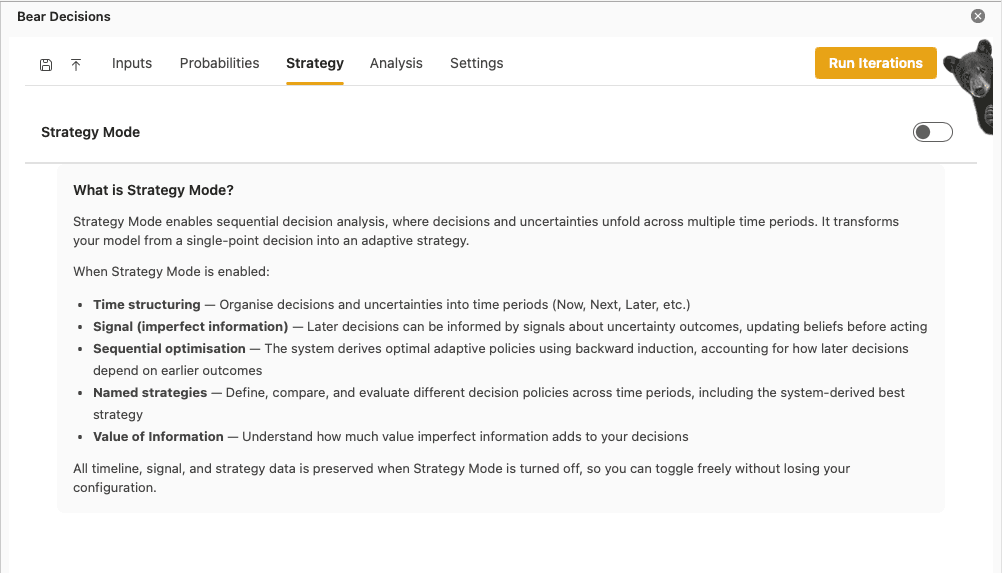
Why sequence decisions and uncertainties?
Not every commitment happens at once. Bear Decisions lets you reflect when each decision area is locked in and when each uncertainty resolves, so the model matches staged commitment instead of assuming everything is chosen simultaneously. For the reasoning behind staging decisions, see sequencing.
Uncertainty areas that resolve before the last stage can feed signals about what may be happening; downstream decisions can then respond. How those signals combine with case probabilities is covered in Probabilities & Signals.
What strategies do
A strategy is a rule set that values, at each stage, the implied future impact of the decisions you commit to—given what you may have observed, how likely your signal read is to be right, and your optimization settings on a chosen tracked result.
Bear Decisions can automate choices by optimizing a selected Tracked Result using its optimization mode (Maximize, Minimize, Satisfied, or Constrained) and the reference goal you compare against. You can also override or lock in specific choices where you want manual control.
Outputs typically include recommended paths per scenario, expected value of the tracked result, likelihood of meeting the reference goal, and (where relevant) likelihood related to signal interpretation quality—exact visuals depend on your dashboard configuration.
Timing and stages
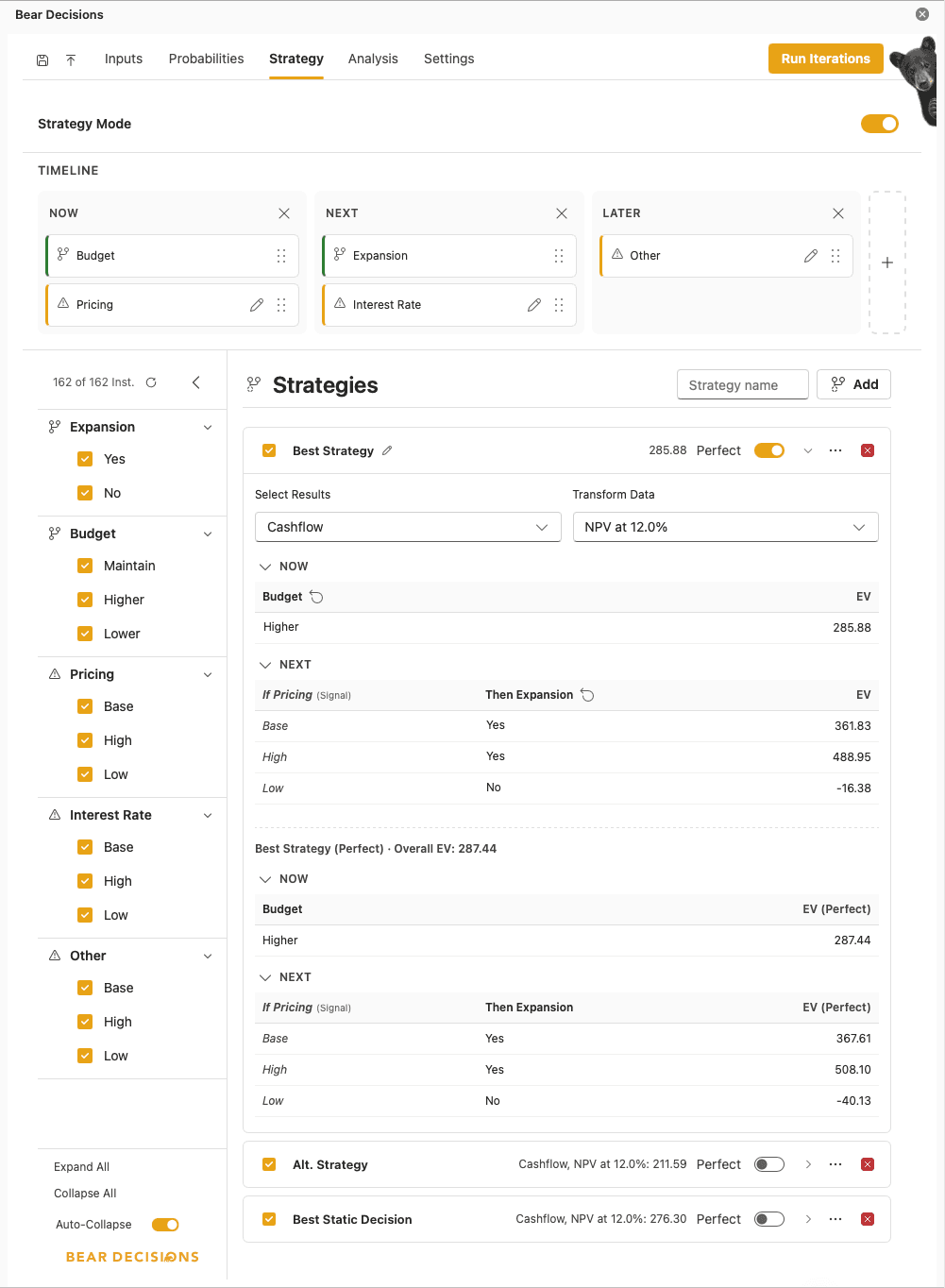
Strategies start from which decision and uncertainty areas resolve at which stage. By default, decisions are placed in the first stage (Now) with uncertainties resolved at the end (Later), however you can change this to suit your needs.
- Drag and Drop the areas to set which category they are within - Now, Next or Later.
- You can also add additional stages by clicking the + button in the top right of the timeline (or remove by clicking the 'x' button per stage).
- When strategy mode is on, each decision and uncertainty area on the Inputs tab also shows timing in the dropdown at the top right of the area card.
Earlier-stage uncertainties can influence later-stage decisions through the signaling setup described in Probabilities & Signals. You can bring up a modal to view the probabilities and signal value associated with each uncertainty area via the pencil icon.
Note that there are limitations on which areas can be placed in which stages based upon relationships defined in the Probabilities & Signals section. Specifically, if an area has a conditional dependency on another area, it cannot occur prior to the area that it is dependent on.
Default strategies
On adding strategy mode, there are three built-in defaults. These may be modified or deleted as desired. If deleted, then there is an option in the bottom left corner to restore the default strategies - should it be desired.
Best Strategy
Chooses decisions along the timeline to optimize the expected value of the selected Tracked Result (first tracked result by default unless you change it), given your reference goal and the likelihood that your interpretation of signals is correct.
Alternative Strategy
Same optimization objective as Best Strategy, but with special handling for Now decisions: it excludes the single best option for that stage—effectively a "second best" path for immediate choices—while still optimizing along the rest of the timeline under the same signal and goal logic.
Best Static Decision
Chooses as if all decisions had to be committed today: one shot at maximizing expected value of the selected Tracked Result against the reference goal, with no flexibility to react to future signals. Useful as a benchmark against fully dynamic paths.
Optimization target (tracked result)
The Tracked Result used for optimization must resolve to a singleton per scenario. If the underlying range is an array, Bear Decisions applies a transformation with a default option of NPV.
Managing strategies in the product
- Customize defaults: Edit, rename, copy, or delete default strategies. If you delete defaults, you may choose to restore them from a button on the bottom-left of the screen).
- Custom strategies: Apart from the special "second best at Now" rule on Alternative Strategy, custom strategies behave like edited copies of Best Strategy—you can use several to compare objectives (e.g. EBITDA vs cash flow vs limiting downside cases).
- Toggle visibility: Turn strategies on or off with the control beside each name; hidden strategies drop out of Dashboard & Visualizations.
- Live updates: Strategy selections stay in sync with the available decision and uncertainty cases as you filter within Analysis. Where a fixed decision is specified for a strategy and this option has been filtered out, the strategy will be skipped from the dashboard and visualizations, however it will still appear in the Legend with an "(Invalid)" suffix.
- Perfect-information variant: The system can show a "perfect" path that assumes signals are interpreted without error. Where it differs from the imperfect path, the specific decision is shown in bold within the expanded strategy view.
- Overrides: Where an override is specified, it appears as italics within the expanded view. You may choose to reset back to be automatically determined per choice via the dropdown (e.g. Auto) or via the reset icon within the header, however this adjusts all choices for that period/variable combination.
Dashboard & Visualizations when strategy mode is on
With strategy mode enabled, default Group by selections for newly added charts in Dashboard & Visualizations follow your defined strategies rather than a plain "Decisions" grouping.
Next Steps
Once you have configured your strategy, you are ready to adjust your probabilities and the quality of your signals to reflect the imperfect nature of the information that you will be receiving. Continue to Probabilities & Signals →