Dashboard & Visualizations
This section covers the configuration of the dashboard and its various visualizations options.
For more information on what the outputs mean for decisions and narratives, continue to Analyze Workflow & Interpreting Results and Communication.
Understanding Your Dashboard
Bear Decisions provides two ways to visualize and analyze your results: You can work directly in the taskpane under the Analysis tab or launch a full dashboard window that can be resized to fill your entire screen.
The dashboard is a great way to get a comprehensive view of your results and input variables side by side, allowing you to compare across scenarios, decisions and uncertainties.
Dashboard Configuration
- Synced vs Unsynced: Choose whether your dashboard window stays synchronized with the taskpane or operates independently for exploration. If you re-sync from the dashboard window, then the taskpane will be updated to reflect the new layout and visualizations.
- Named Views: You have the ability to pre-configure and save groups of visualizations and their configuration settings. The application supports up to 10 named views, which can be renamed or deleted as desired. Once you have adjusted the configuration of the view, it will have it's name in italics and "(Modified)" appended to it - you may click the restore button to revert the changes back to the saved case.
- Save/Load Configurations: As well as named views, you are able to save the overall configuration (including area/variable/result definitions, probabilities, strategy inputs) via the save icon in the top-left of the taskpane. This also saves the current state of the named views - enabling you to experiment and restore later as necessary.
- Multiple Visualizations: Add as many charts and tables as needed for your analysis
- Flexible Layout: Resize visualizations using the three dots (⋯) and reposition them by clicking the six-dot icon (⋮⋮) and then dragging the visualization to the desired position.
Note that the Taskpane supports two columns of total width, while the Dashboard supports up to four column of total width. Where a visualization is specified as wider than two columns, it will be automatically resized to fit the available width.
Visualization Types
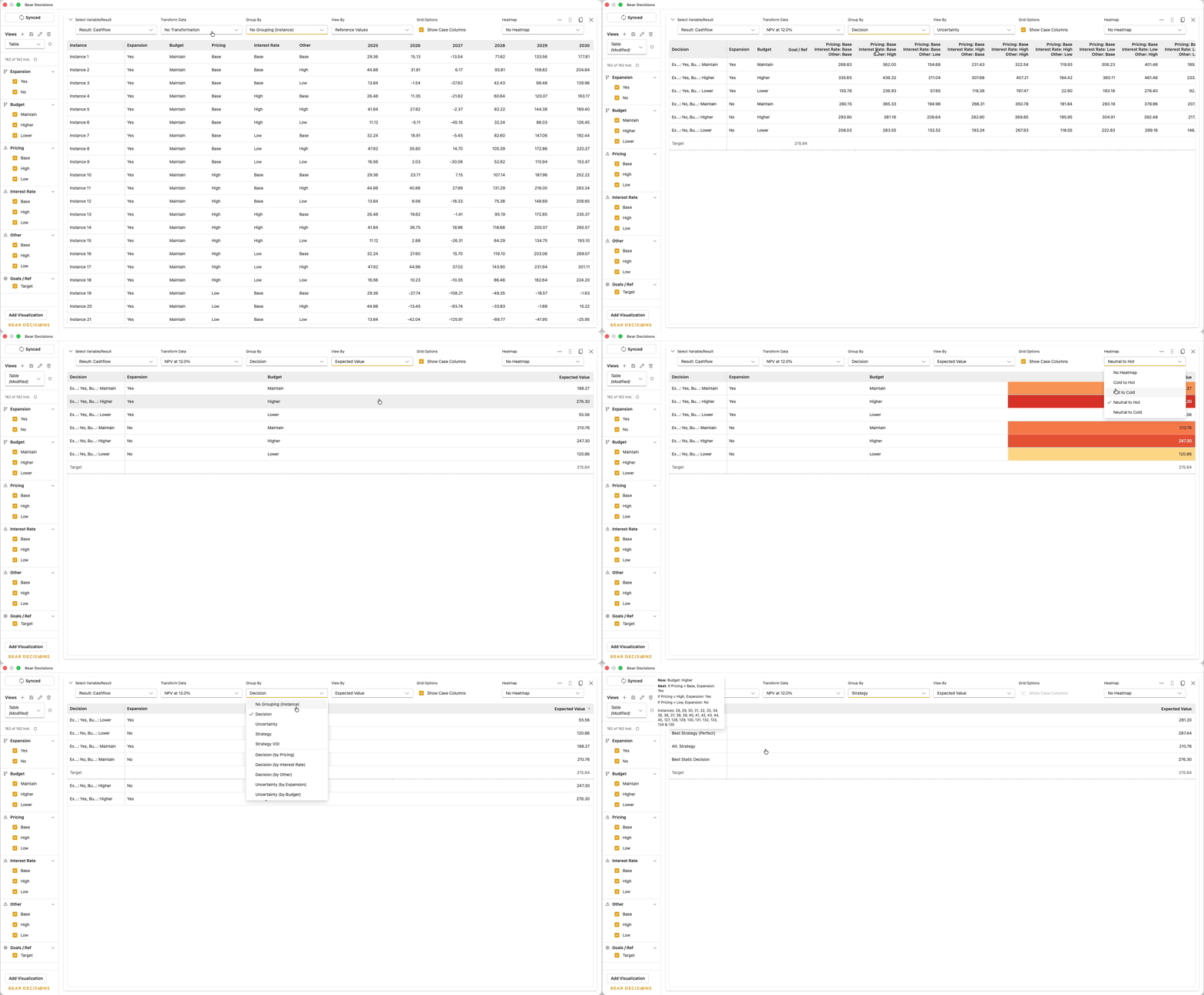
Tables
Tables are a great way to understand the full distribution of your results, helping you understand the full spectrum of possible outcomes - with precise numbers shown directly.
- Heatmapping: Color coding helps identify high and low values at a glance
- Show Case Columns: Choose whether to include extra columns including the Area's selected case name for each scenario (not applicable when grouped by Strategy - in this case you will need to hover over the name to see the more complex policy of decisions at each stage)
- Sorting: Click any column header to cycle through ascending, descending, or no sort
- Goal Likelihood: A special View By option applicable only to the Table, Simple Chart and Decision Tree visualizations which utilizes the probability of each contributing option to evaluate the likelihood that the value meets or exceeds the selected goal value (maximizing or minimizing as necessary). In the case that no goal or reference value is defined, then it will return 0.
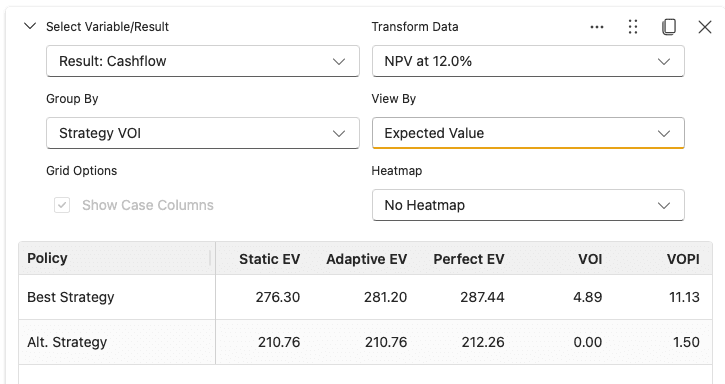
As well as the standard Group By options, the table has a unique option of Strategy VOI which will show the Value of Information (VOI) for each strategy. This view contrasts the expected value of the strategy with the expected value of the best static decision as well as the strategy if the signal was perfect - helping you understand the impact of information gathering and the value of flexibility that a staged sequential decision approach provides towards the overall outcome.
Simple Charts
Simple charts are a great way to understand the central tendency of your results, helping you understand a single view of different decisions, uncertainties and scenarios.
- Bar Chart: For display of singleton values (single data points). Sortable by clicking on either the x or y axis
- Line Chart: For display of arrays (time series or multiple data points)
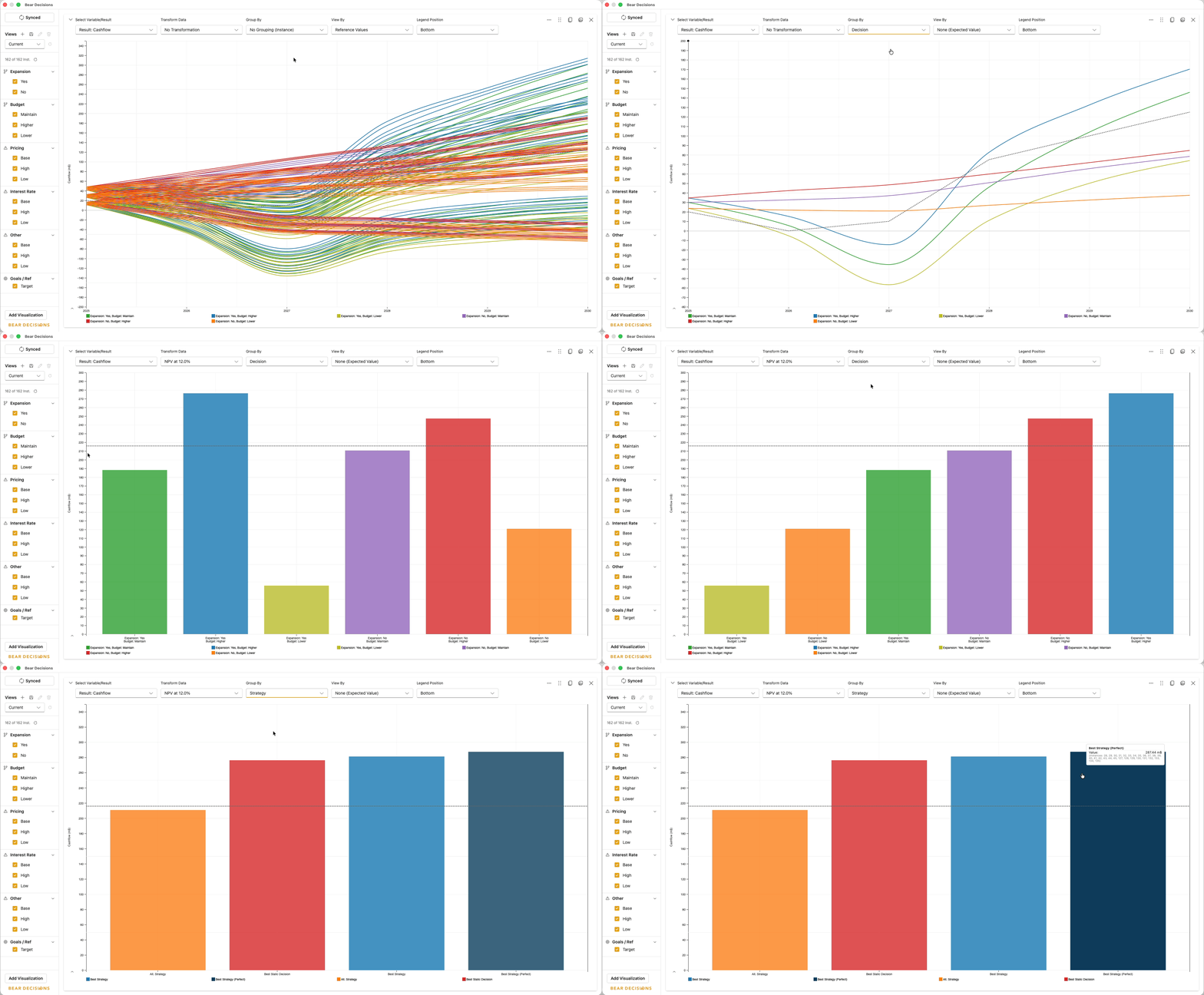
Note: When it is a Line Chart, the time scale may be zoomed in via clicking on the magnifier in the bottom right corner of the chart, then clicking and dragging over the desired periods.
Range Charts
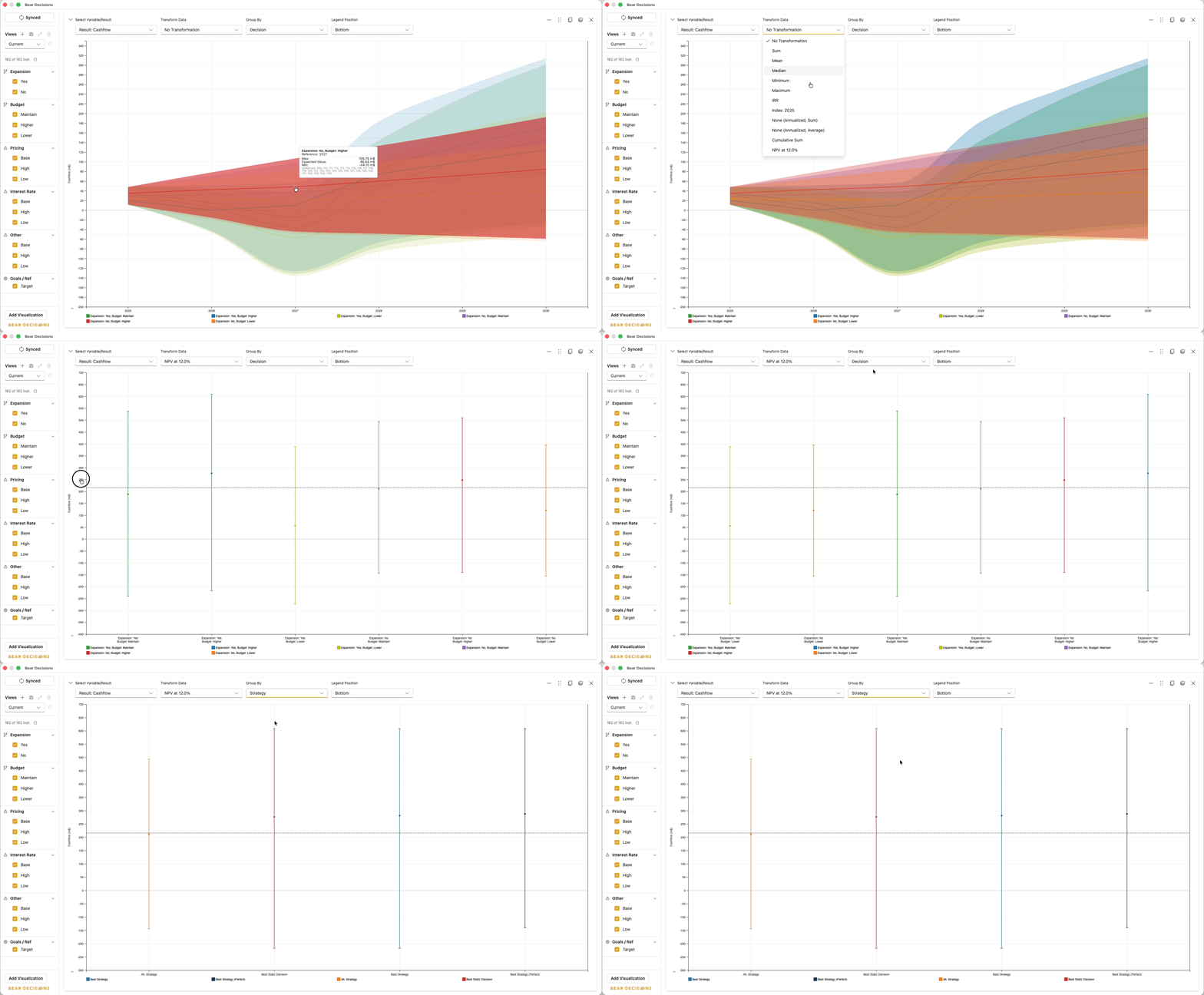
Range charts are a great way to understand the spread of possible outcomes, helping you understand both the upside potential and downside risk of different decisions.
- Simplified Box Plot Display: For display of singletons (top and bottom lines showing range of minimum and maximum values and a central value with a diamond). Sortable by clicking on either the x or y axis
- Area/Line Charts: For display of arrays showing the minimum and maximum range across time or categories with an area and a line showing the central value
Notes:
- The central value is the Expected Value when grouped by Decision or Strategy, and the Mean when grouped by Uncertainty
- Must be grouped by Strategy, Decision or Uncertainty (Range Chart is not applicable to individual instances)
- When it is an Area/Line Chart, the time scale may be zoomed in via clicking on the magnifier in the bottom right corner of the chart, then clicking and dragging over the desired periods.
Cumulative Distribution Plot (CDP) Charts
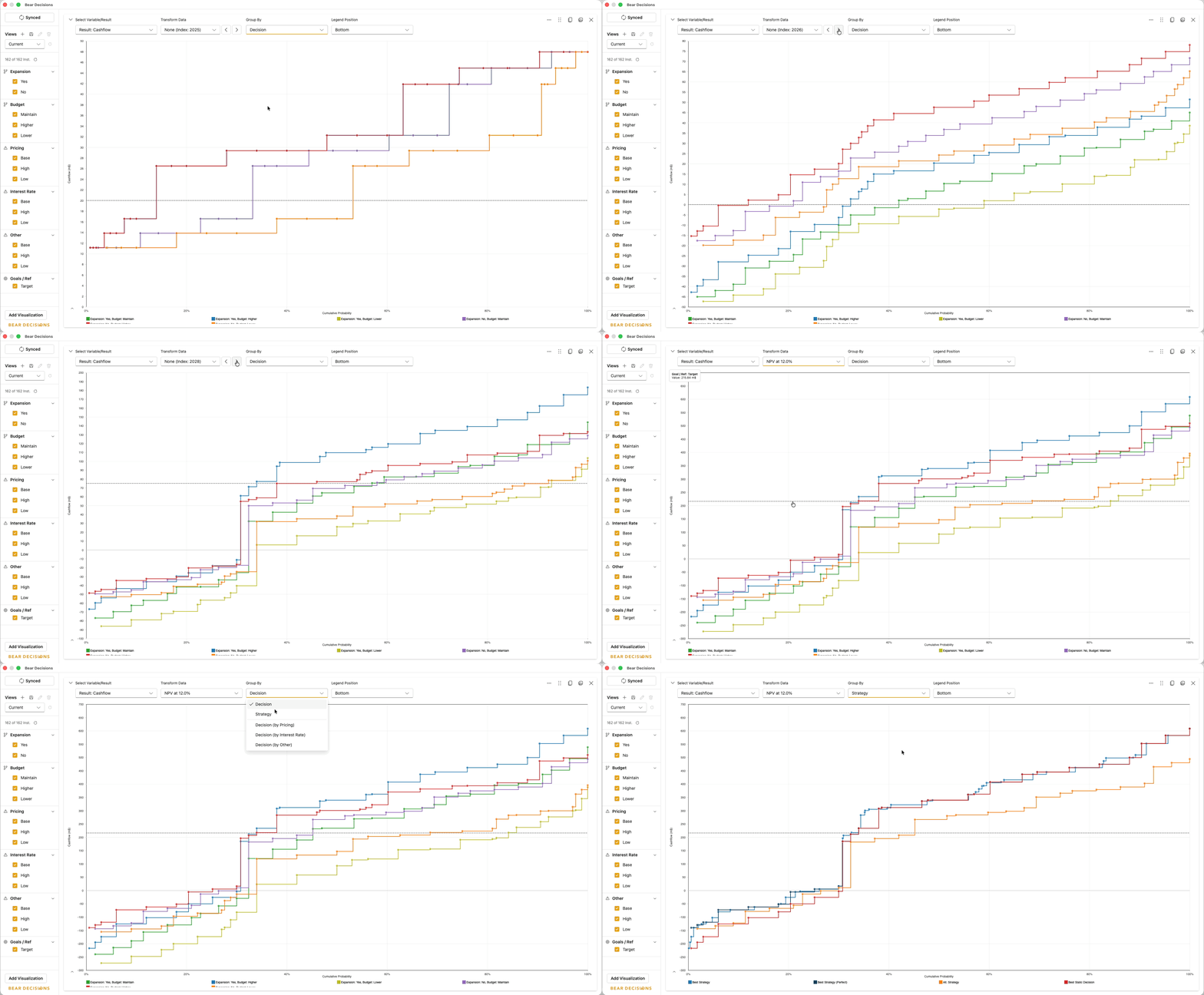
Restricted chart type that is automatically grouped by Strategy or Decision with the cumulative probability distribution as a hardcoded view by option. Helps you understand the likelihood of achieving different outcome levels. Only applicable to singleton values (will automatically apply an index transformation to the data if it is not already a singleton).
- Sorting: Click the x-axis to flip the percentile display
CDP charts answer questions like "What's the probability of achieving at least $1M in profit?" or "What outcome can I expect with 90% confidence?" Use these to understand risk tolerance and set realistic expectations.
Tornado Charts
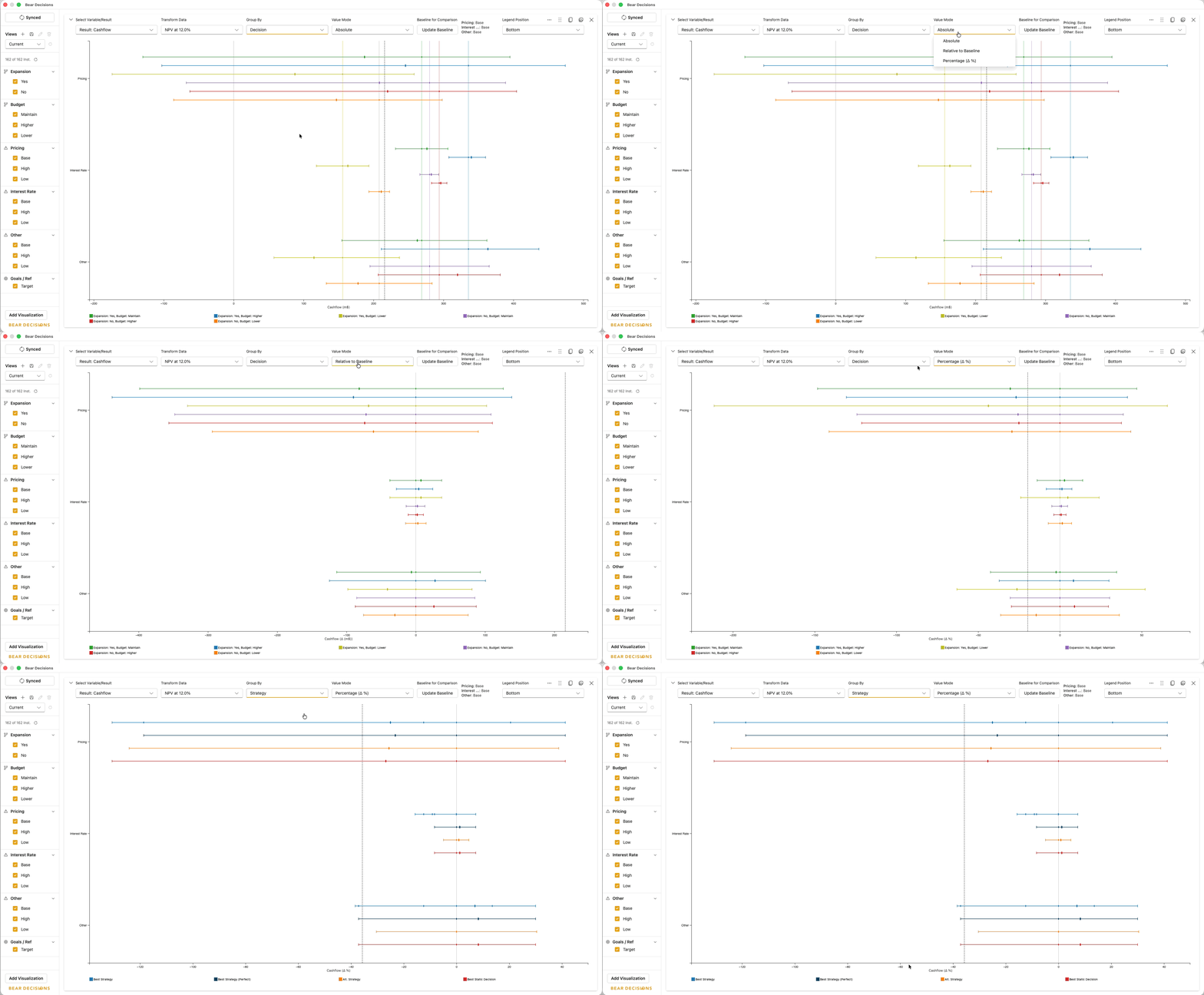
Tornado Charts are a great way to understand the range of possible outcomes associated with each specific area of uncertainty, controlling for the impact of other uncertainties relative to a defined baseline case. These charts are automatically grouped by Decision or Strategy. Only applicable to singleton values (will automatically apply an index transformation to the data if it is not already a singleton)
- Value Mode: Choose whether to show the absolute value of the outcome, a relative value compared to the defined baseline case, or a percentage change from the baseline case.
Note: When the baseline case's result is 0 and the percentage change is selected, any deltas displayed will be proportional to a cap, where the cap is the next base 10 increment of the largest percentage delta that is displayed (e.g. if the largest percentage delta is 90% for a different decision/case, the cap will be 100%). - Update Baseline: Easily update what your reference point is by clicking into the Analysis Tree while in the update mode.
Note that updates are specific to the current Tornado Chart only, and that the mode will exit if changes outside of the Analysis Tree are made. Additionally, if during the general navigation/investigation of the dashboard, the analysis tree is modified so that the baseline case is not selected, then the first available case will be selected as the baseline case for that specific uncertainty area. - Expected Value: Beyond the minimum, maximum and baseline values, the Tornado Chart will also show the Expected Value of the outcome, which is the probability-weighted average of the outcome across all outcomes for the controlled uncertainty area. This will help you rapidly understand the relative skew of the distribution
Waterfall Charts
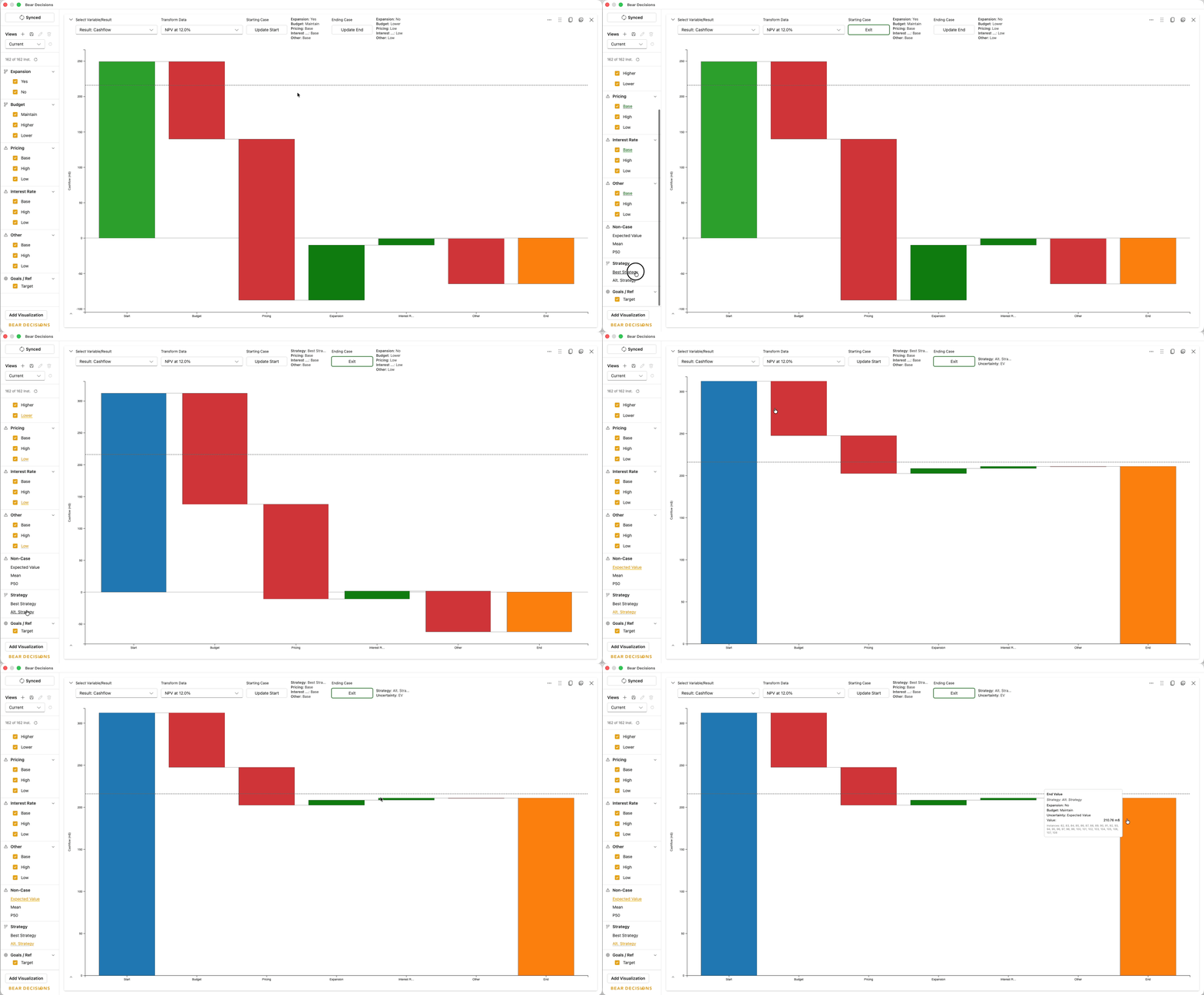
Waterfall Charts are a great way to understand how you get from one set of decisions or uncertainties to another. Similar to the Tornado Chart, you select initial and final sets of decisions and uncertainties and it shows the progressive change in the outcome per area. It also supports showing an Expected Value or Mean of the uncertainties - helping you decipher the impact of specific outcomes from these aggregated results. Only applicable to singleton values (will automatically apply an index transformation to the data if it is not already a singleton)
- Update Start/End: Easily update what your reference point is by clicking into the Analysis Tree while in the update mode.
Note that updates are specific to the current Waterfall Chart only, and that the mode will exit if changes outside of the Analysis Tree are made. Additionally, if during the general navigation/investigation of the dashboard, the analysis tree is modified so that the baseline case is not selected, then the first available case will be selected as the starting case for that specific area, while the last available case will be selected as the ending case (as applicable). - Strategies: As well as being able to select specific decisions options instances, the Waterfall Chart is able to automatically make the choices based upon a selected strategy, given the uncertainties selected. This will help you rapidly understand how with changes in uncertainty the decisions also change to mitigate the impact. Note that this will only be applicable if strategy mode is enabled.
- Expected Value/Mean/P50: As well as being able to select specific outcome instances, the Waterfall Chart is able to provide the expected value or mean aggregated uncertainty outcomes as well as the 50th percentile (median) of the uncertainty outcomes. Where there are multiple uncertainty areas, this acts as a progressive narrowing or expanding of the included instances depending on if the start or end is selected. This will help you rapidly understand how much the EV is shaped by each of the uncertainty areas outcomes independently
Decision Trees
Decision Trees are a great way to understand the full path of a specific scenario outcome back to the expected values of associated decisions and incremental uncertainty areas. They are automatically grouped by Decision or Strategy and show the full path of the scenario through the analysis tree. Only applicable to singleton values (will automatically apply an index transformation to the data if it is not already a singleton).
- Decisions: Options exist to show all decisions simultaneously or to select a specific decision to show the full path of the uncertainty areas through the analysis tree.
- Strategies: When strategy mode is enabled, the Decision Tree is able to show the full path of the strategy through the analysis tree. It will automatically collapse branches that are not part of the selected strategy and highlight with stars and a different color the better paths. The sequence will also adjust so that the decisions are shown in the order of the strategy timeline. In addition to being able to select specific strategies, there is also the "All Options" configuration option that shows the entire tree and automatically identifies the best path for the selected variable and transformation.
- Collapse/Expand: As well as being able to filter out selected cases (and their descendents) from the analysis tree on the left, there is also the option to collapse (and re-expand) a branch of the tree by clicking on the symbol (the square, circle or triangle). The numbers in this case stay the same, considering the contributing instances, but are hidden to help create focus on the remaining items.
- Signal Quality: The Decision Tree is able to toggle the displayed numbers to show the imperfect or perfect information along the path when in strategy mode. Additionally, on hover the tooltip always shows both to enable easy interrogation of the value of information.
- Goal Likelihood: As well as showing the absolute value of the outcome, the Decision Tree is able to show the likelihood that the outcome meets or exceeds the selected goal value (maximizing or minimizing as necessary). In the case that no goal or reference value is defined, then it will return 0.
- Reset Branches: The Decision Tree is able to reset the branches to the original state by clicking the reset icon in the bottom right corner of the visualization. This will reset all branches to the original expanded/collapsed state.
Note: Due to the large likely number of iterations and hence decision paths, the Decision Tree has elements on the top, bottom and left hand side of the visualization to flag the source of the tree path e.g. If the 'Expansion' decision branch is beneath the visible area, it will show the case name at the bottom of the visualization.
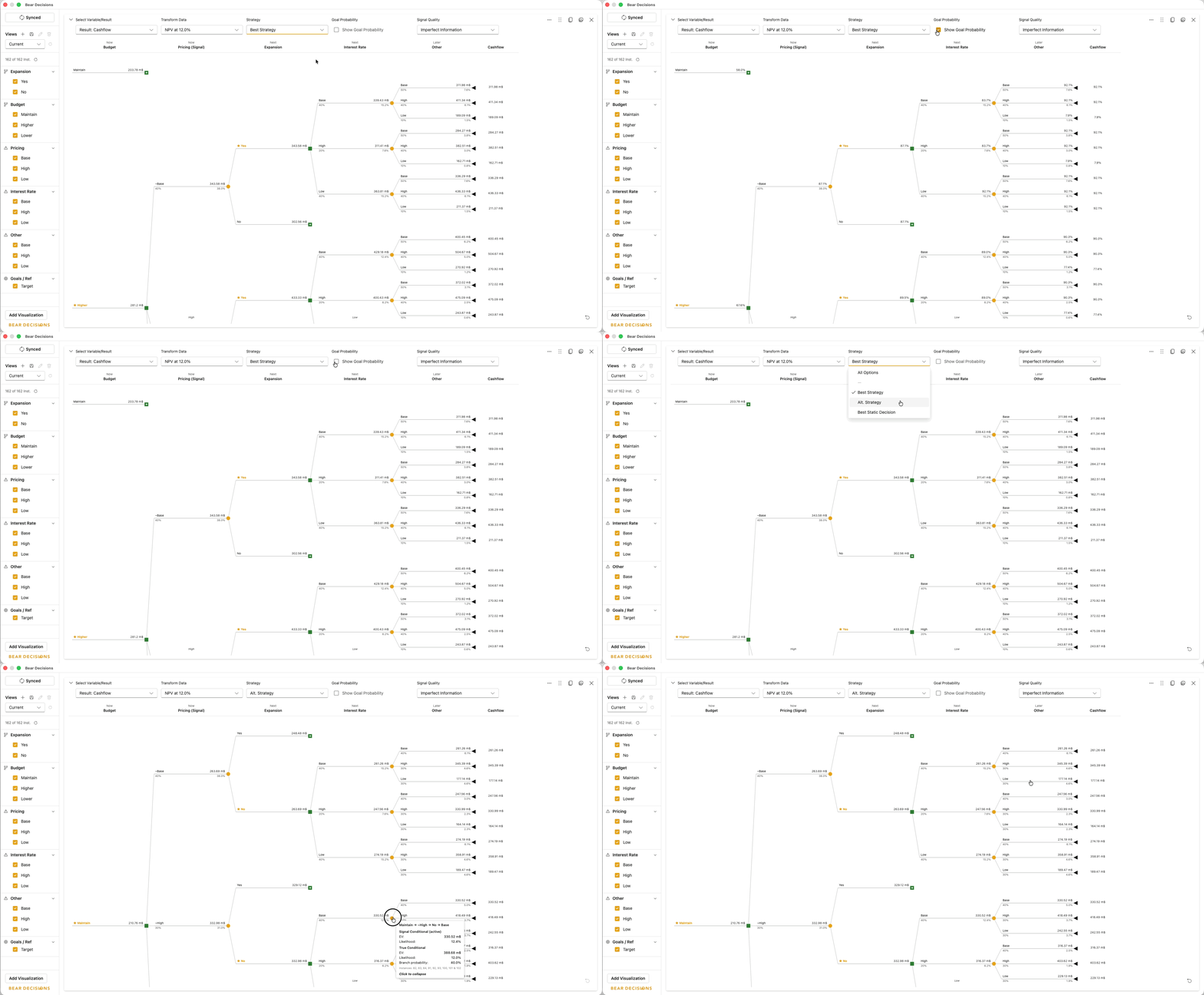
The Decision Tree exists both within the Analysis tab and the Probabilities tab. On the Analysis tab it is solely for reporting and seeing in context with the other results. On the Probabilities tab it can be used to quickly test changes to the likelihoods of a specific uncertainty area to identify if there is a directional change in the decision without having to go through the full analysis process.
Analysis Configuration Options
Each of the visualizations can be configured to show any of the Tracked Results and Input Variables with the following options. The Table, Simple Chart and Decision Tree visualizations also have the ability to show the Likelihood of each case occurring.
Grouping Options
- Instance: No grouping - see individual scenario results
- Strategy: Group results by your strategy choices
- Decision: Group results by your decision choices
- Uncertainty: Group results by uncertainty outcomes
- Decision (by 'Uncertainty Area'): Group results by decisions, with groups split by the specified Uncertainty Area - allowing you to rapidly understand the impact of different decisions under different uncertainty scenarios
- Uncertainty (by 'Decision Area'): Group results by uncertainty outcomes, with groups split by the specified Decision Area - allowing you to rapidly understand the impact of different uncertainty scenarios under different decisions
- 'Strategy': Show a selected individual strategy, enabling you to go deeper into the analysis with a focused visualization
Transformations
Apply mathematical transformations to your results, transforming arrays into singletons:
- Sum: Total values across the selected dimension
- Mean: Average values
- Median: Middle value when sorted
- Minimum/Maximum: Extreme values
- IRR: Internal Rate of Return (defaults to 0 if no valid result)
- NPV: Net Present Value (defaults to 10% discount rate, configurable in Settings)
- Index: Select a specific point from a time series
- Annualized: Aggregation of the variable to an annual base rather than Quarterly/Monthly/Daily/etc. This is applicable for both Sum and Average modes
- Cumulative Sum: This will show the cumulative sum of the variable over time.
View By Options
Primarily associated with managing aggregation of results or inputs when grouped.
- Mean, Median, Minimum, Maximum: Statistical measures of your results
- Expected Value: Probability-weighted average across uncertainty scenarios
- Reference Values: No transformation applied. Note that where it is grouped, then will show the opposite grouping dimension e.g. if grouped by Decision, view by Uncertainty
- Goal Likelihood: A special View By option applicable only to the Table, Simple Chart and Decision Tree visualizations which utilizes the probability of each contributing option to evaluate the likelihood that the value meets or exceeds the selected goal value (maximizing or minimizing as necessary). In the case that no goal or reference value is defined, then it will return 0.
⚠️ Critical Distinction: Expected Value vs Mean
Expected Value is the probability-weighted average across your uncertainty scenarios, incorporating the likelihoods you assigned to different cases.
Mean is the simple arithmetic average across all scenarios, treating each as equally likely.
Expected Value reflects your best estimate of what will actually happen; Mean shows what would happen if all scenarios were equally probable.
Next Steps
Continue to Analyze Workflow & Interpreting Results for interactive analysis, interpretation pitfalls, and decision framing—or jump to Communication if you are focused on stakeholder-facing narratives.