Authentication
Bear Decisions offers two authentication methods:
- Microsoft SSO: For users with school or work accounts
- Email-based authentication: Using One-Time Passcodes for personal accounts
Authentication Methods
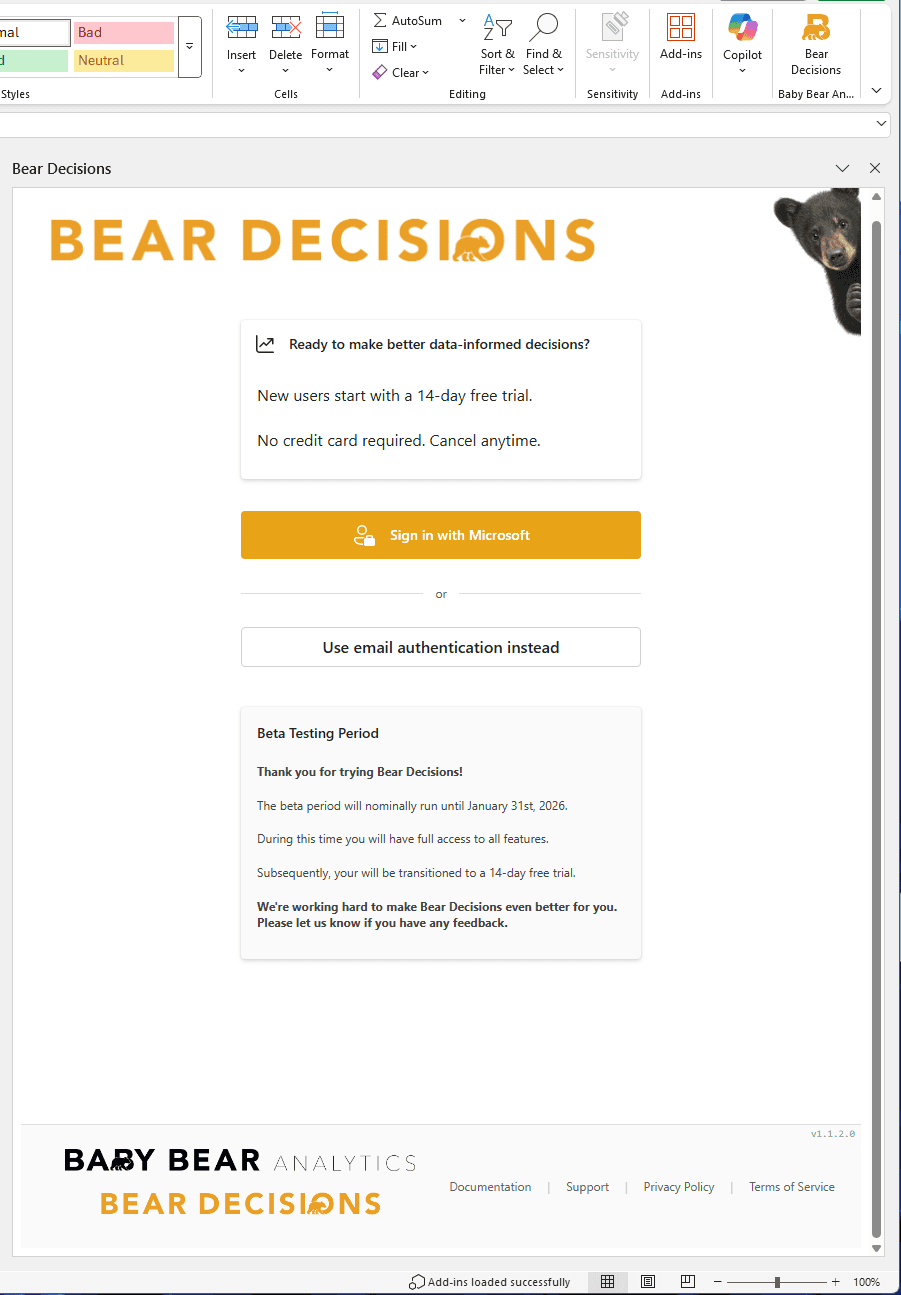
When you first launch Bear Decisions, you'll see a login screen with authentication options:
🔐 Microsoft SSO Authentication
If you're using Excel with a school or work Microsoft account, Bear Decisions can authenticate using Microsoft Single Sign-On (SSO). This provides seamless access using your existing Microsoft credentials.
✅ How Microsoft SSO Works
- Automatic Detection: Bear Decisions uses the Microsoft account you're currently logged into Excel with
- Seamless Authentication: No need to enter credentials - authentication happens automatically
- Work/School Accounts: Ideal for enterprise users with organizational Microsoft accounts
- Personal Account Fallback: If you're using a personal Microsoft account, it will use that email address and fall back to the email authentication approach if needed
For more information, see Technical Authentication Details.
Licensing Check
After successful authentication via Microsoft SSO, Bear Decisions will automatically check your licensing status. This determines whether you have an active subscription, are on a trial period, or need to purchase a license. For details about the different account types and licensing options, see the Account Types section.
Switching Microsoft Accounts
Important: If you change the user account in Excel, you may need to close and restart Excel for Bear Decisions to utilize the revised user account. This ensures that the correct Microsoft account is detected for authentication.
📧 Email Authentication (One-Time Passcode)
Email authentication enables you to use a One-Time Passcode (OTP) to authenticate. Bear Decisions uses Supabase's secure One-Time Passcode system, which provides a simple, secure way to access your account without needing to remember passwords.
✅ Benefits of Email Authentication
- No Password Required: Secure login without remembering complex passwords
- Any Email Address: Use your preferred email address for authentication
- Secure & Encrypted: Industry-standard security protocols protect your access
- Long-lasting Sessions: Stay logged in for up to 3 months
How to Authenticate
- Enter your preferred email address in the login form
- Click "Send Verification Code"
- Check your email for a secure authentication code
- Enter the code to complete authentication
- Your session will remain active for up to 3 months
Session Duration
- Long-lasting sessions: Once authenticated, you'll stay logged in for up to 3 months
- Manual logout: If you explicitly log out, you'll need to re-authenticate
- Device-specific: Each device/browser needs its own authentication
- Automatic renewal: Active usage may extend your session automatically
💡 Email Authentication Tips
- Check your spam/junk folder if you don't see the authentication email
- The authentication code typically arrives within 1-2 minutes
- You can use any email address - work, personal, or dedicated business email
- Consider using your work email for business analyses for better organization
🔒 Security & Privacy
Your authentication and data security are important to us:
- Secure Authentication: Uses industry-standard security protocols via Supabase
- No Password Storage: We don't store passwords - authentication is handled securely
- Local Data Processing: Your Excel data stays on your device during analysis
- Encrypted Communications: All data transmission is encrypted
- Data Collection: We collect your email address and tenant ID (if applicable) for authentication and licensing purposes
Troubleshooting Authentication
Common Issues
- Email Not Received: Check spam folder and ensure email address is correct
- Code Expired: Authentication codes expire after a few minutes - request a new one
- Invalid Code: Double-check the code for typos and ensure it's the most recent one
- Network Issues: Ensure you have a stable internet connection
- Browser Issues: Try clearing your browser cache or using a different browser
- Microsoft Account Not Detected: If you've changed your user account in Excel, close and restart Excel to allow Bear Decisions to detect the new account
Need Help?
If you encounter authentication issues, please contact our support team at mark@babybearanalytics.com with details about any error messages.
🚪 Logging Out
Need to switch accounts or log out completely? You can manage your authentication from within Bear Decisions.
How to Log Out
- Open Bear Decisions in Excel
- Navigate to the Settings screen within the Bear Decisions task pane
- Look for the "Sign Out" button at the bottom of the screen
- Click to log out of your current session
- You'll be returned to the login screen to authenticate again
💡 When to Log Out
- Switching Accounts: To use a different email address
- Shared Devices: When using Bear Decisions on a shared computer
- Troubleshooting: If you're experiencing authentication-related issues
- Security: When you want to ensure no one else can access your Bear Decisions session
Note: Logging out will end your current session immediately. You'll need to re-authenticate using email verification to regain access to Bear Decisions.
Next Steps
Once you're successfully authenticated, Bear Decisions will check your licensing status. What happens next depends on your account type:
New Users on Trial
If you're a new user starting your 14-day free trial, you can jump straight into creating your first analysis.
Continue to Your First Analysis →Understanding Account Types
Learn about the different subscription plans, licensing options, and how to manage your account.
Continue to Account Types →