Your First Analysis (Example)
Walk through of using Bear Decisions using a real Excel model.
This analysis covers a set of "Now" decisions and uncertainties and doesn't leverage the recently added Strategy mode to sequence the decisions over time based upon observed uncertainty outcomes (signals).
Prefer to watch? A 12-minute walkthrough shows the full flow from opening the example model to interpreting results—perfect if you learn by seeing it in action.
📊 Download the Example Model
Follow along with the exact model used in this example. You can also jump to the final configured state by clicking "Load" (second icon from left) in Bear Decisions.
Note: If the file opens in your browser instead of downloading, right-click and "Save As".
Example Scenario: Facility Expansion Decision
You are managing a facility and have two areas of decisions you need to consider:
- Whether you should expand the plant (yes or no)
- How much total budget you are going to ask for (maintaining existing, higher or lower)
When you are considering these decisions, you have also identified three areas of uncertainty:
- The price of the product you are selling (high, base or low)
- The interest rate you will be charged on the loan you are taking out (high, base or low)
- Other miscellaneous risks that may impact your decision (high, base or low)
What Bear Decisions Will Help You See:
- There are 6 different decisions you could make
- There are 27 different outcomes you could see per decision
- Consider the full 162 different scenarios you could see based upon the combination of the decisions and uncertainties
Getting Started: Opening Bear Decisions
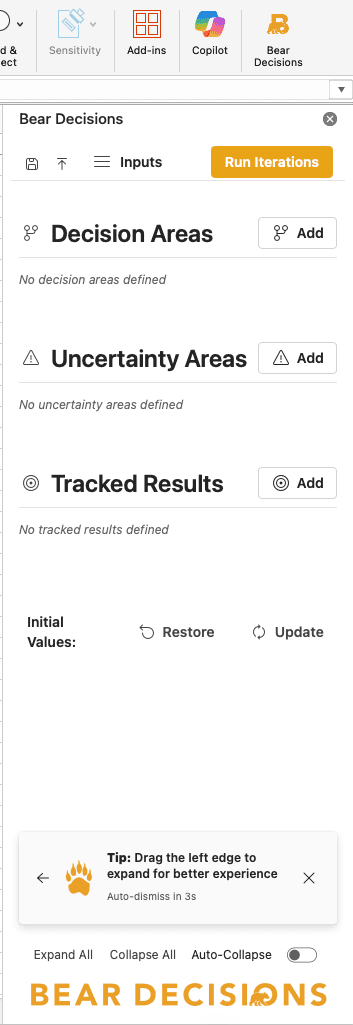
First, let's launch Bear Decisions from the Home ribbon and get oriented with the interface.
Pro Tip: Widen Your Window
Before diving in, expand the Bear Decisions task pane to give yourself more room to work. This will help you see all the options without excessive scrolling and make the configuration process much smoother.
Step 1: Understanding Your Excel Model
Our facility model evaluates the financial impact of plant expansion and budget decisions. Here's the starting model with key areas highlighted:
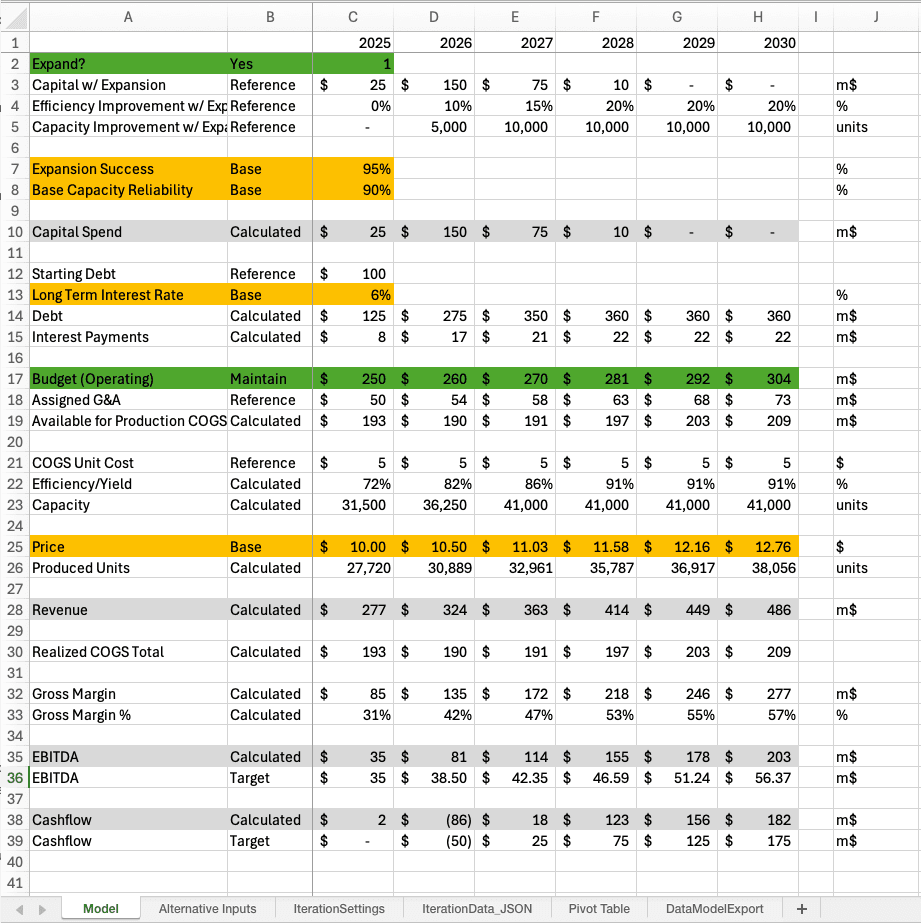
Green: Decision areas you control
Orange: Uncertainty areas you don't control
Gray: Results you want to track
Model Mechanics
- Capital Investment: Spending to improve capacity and efficiency
- Additional Loan: Financing the expansion at variable interest rates
- Operating Budget: Independent budget modifications affecting production limits
- Production Constraint: Limited by both plant capacity and budget
- Sales Assumption: Can sell whatever we produce
Green: Decision areas you control
Orange: Uncertainty areas you don't control
Gray: Results you want to track
Step 2: Setting Up Alternative Inputs
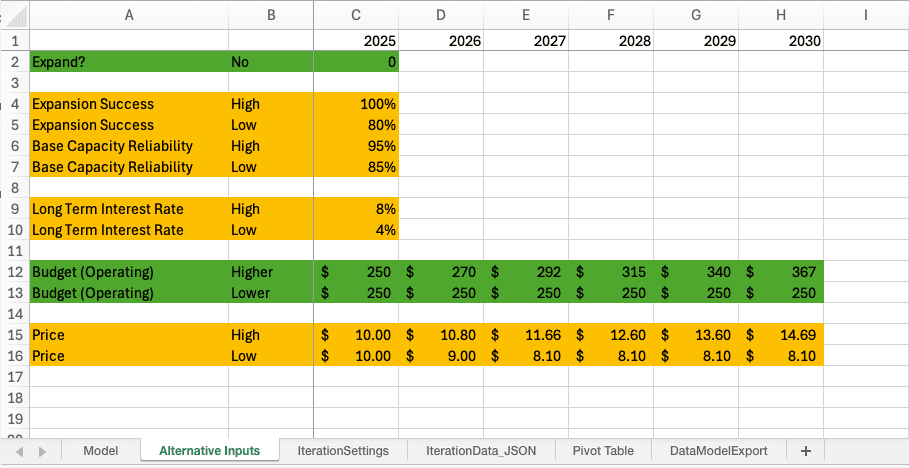
Bear Decisions needs to know where your alternative values are stored if you want to use pre-defined alternative inputs (else you will need to define how you want to factor or add/subtract from your initial values). Here's how our inputs are organized:
💡 Note about Inputs
While I have explicitly shown the variable names and cases in this example, these can be skipped if your model doesn't have them as a continuous set of cells. Bear Decisions will add defaults that can be edited later to match your preferences.
Step 3: Defining Decision Areas
These are the choices you control. In our facility example, we have two key decision areas:
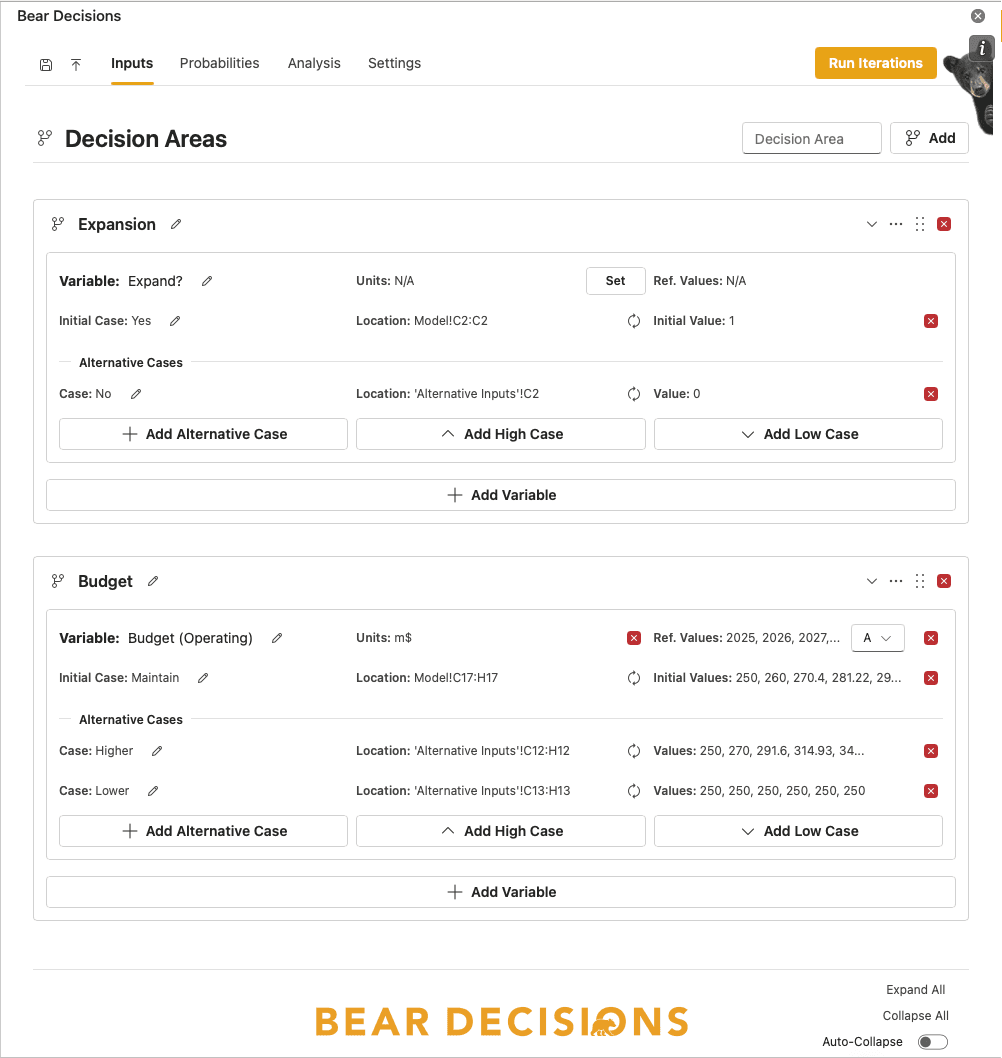
Our Decisions:
- Plant Expansion: Yes or No
- Budget Level: Maintain existing, Higher, or Lower
This gives us 6 different decision combinations to evaluate.
Lets start by defining the decision areas before moving on to the alternative values in the next step.
🔧 Adding Decision Areas Step-by-Step:
For the Plant Expansion Decision Area:
- Type "Expansion" in the name field next to the Decision Area header
- Click the "Add" button on the Decision Area header
- In Excel, highlight the relevant cells that represent this decision (e.g. A2:C2)
- Press "Add Variable" in Bear Decisions
Note: In this case, there are no units or reference values needed
For the Budget Decision Area:
- Type "Budget" in the name field next to the Decision Area header
- Click the "Add" button on the Decision Area header
- In Excel, highlight the budget decision cells (e.g. A17:H17)
- Press "Add Variable"
- In Excel, highlight the reference values (e.g. C1:H1)
- Press "Set" to the right of 'Ref. Values'
- In Excel, highlight the units (e.g. J17)
- Press "Set" to the right of 'Units'
💡 Note about Inputs
In this example we have a single yes/no trigger for the plant expansion decision captured in Bear Decisions. This trigger changes the Capital Spend, the Efficiency/Yield of the team as well as the Capacity of the plant.
You might want to consider adding such a device if your previous workflow was hardcoding a bunch of input variables. Alternatively you could have all three variables added under this single decision area (along with matching alternative values) - it is up to what makes the most sense for your model.
Step 4: Adding Alternative Values
Now that we have defined the Decision Areas, we need to identify the inputs for alternative choices you could make.
🔧 Adding Alternative Values Step-by-Step:
Firstly, lets change sheets to "Alternative Inputs"
For the Expansion Decision Area:
- In Excel, highlight the relevant cells that represent the alternative decision of 'No' (e.g. B2:C2 from the "Alternative Inputs" sheet)
- Press "Add Alternative Values" in Bear Decisions for the 'Expand' variable
For the Budget Decision Area:
- In Excel, highlight the relevant cells that represent the alternative decision of 'Higher' (e.g. B12:H12)
- Press "Add Alternative Values" in Bear Decisions for the 'Budget' variable
- In Excel, highlight the relevant cells that represent the alternative decision of 'Lower' (e.g. B13:H13)
- Press "Add Alternative Values" in Bear Decisions for the 'Budget' variable
Note: Given that the alternative values are in a continuous set of cells, we can add both 'Higher' and 'Lower' at the same time if we had just selected B12:H13.
Rather than using the pre-defined alternative values, you can also define how you want to factor your initial values. This is done by clicking on the 'Add High Case' or 'Add Low Case' button and then adjusting the settings on how to factor the values. This allows you to change between scalar multiplying or having the addition/subtraction of absolute values, the degree of delta (percentage or absolute amount), whether it is applied immediately for arrays or over what timeframe the values will diverge.
Step 5: Defining Uncertainty Areas
These are external factors that could impact your results but are outside your control:
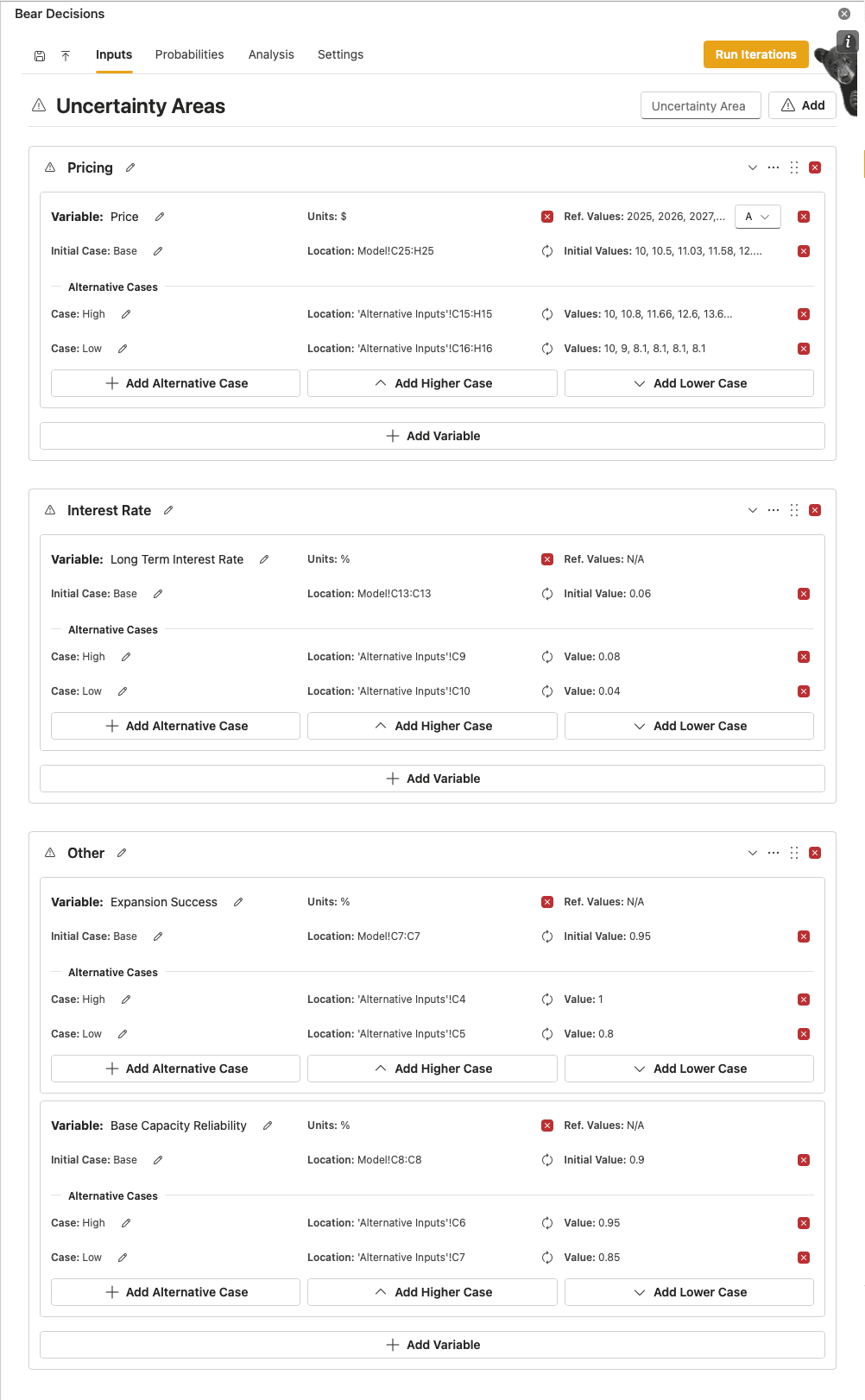
Our Uncertainties:
- Product Price: High, Base, or Low market conditions
- Interest Rate: High, Base, or Low lending rates
- Other Risks: High, Base, or Low operational risks
With 3 uncertainty factors each having 3 levels, we get 27 different outcome scenarios per decision.
Please repeat the definition process from steps 3 and 4 for the uncertainty areas - it is identical, just with different cells highlighted!
Step 6: Setting Up Tracked Results
Choose the key metrics you want to monitor across all scenarios:
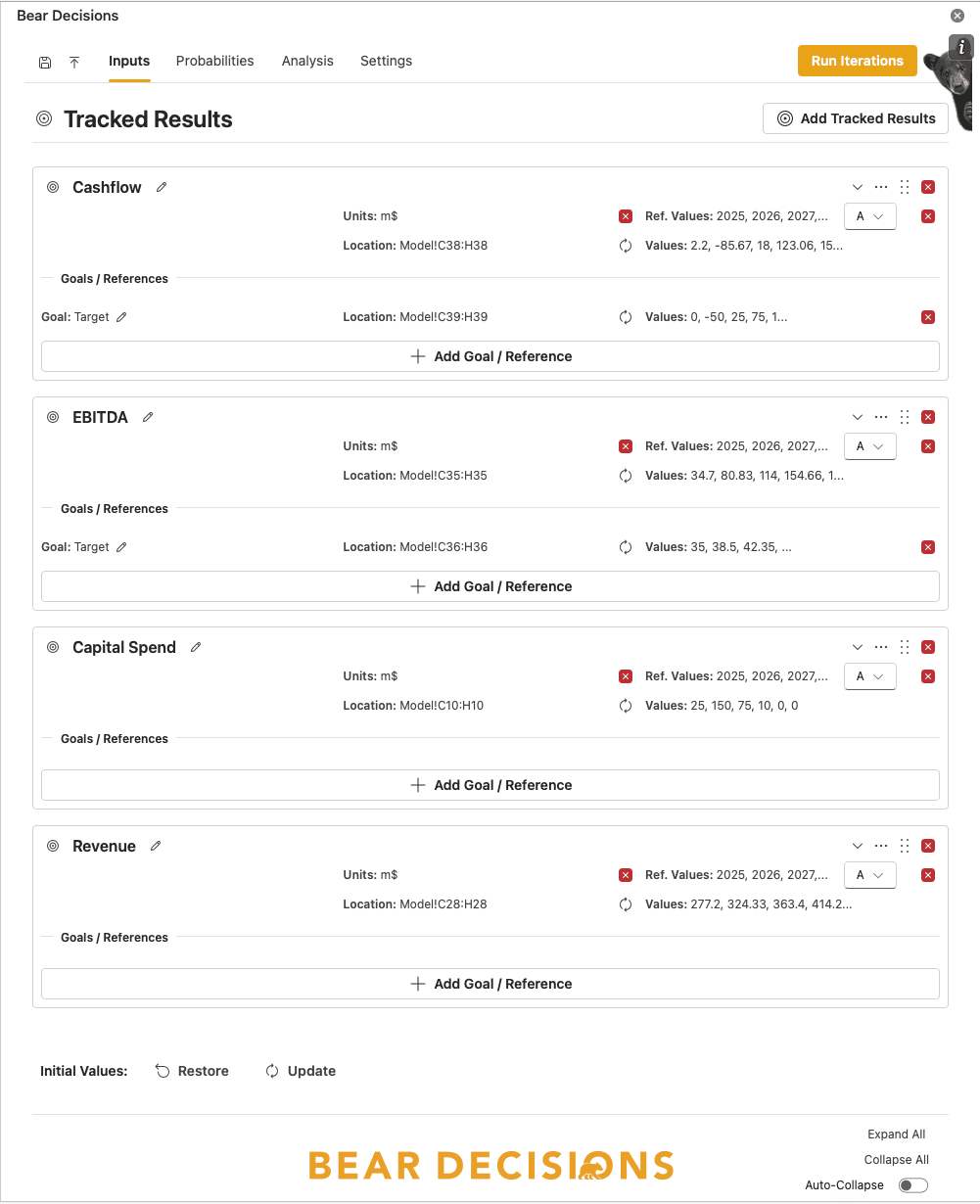
We're tracking KPIs like Cashflow, Revenue, and EBITDA, and comparing against our Cashflow and EBITDA goals. You don't need to include everything here since you can always send specific scenarios back to Excel for detailed analysis.
🔧 Adding Tracked Results Step-by-Step:
Okay, we are back on the "Model" sheet"
For each of the tracked results, we need to add the cells that represent the result you want to track.
- In Excel, highlight the relevant cells that represent the result, reference or non-input variable you want to be able to view in the Analysis (e.g. for EBITDA, you can select A35:H35)
- Press "Add Tracked Result" in Bear Decisions
Note: B35 is ignored in this case for ease of standard layout with the inputs. If your model has just the label then the results, this works too.
If you have a goal or reference you want to be able to compare against for the KPI:
- In Excel, highlight the relevant cells that represent the goal (e.g. B36:H36)
- Press "Add Goal / Reference" in Bear Decisions for the variable you want to compare against
Review of our Model in Bear Decisions
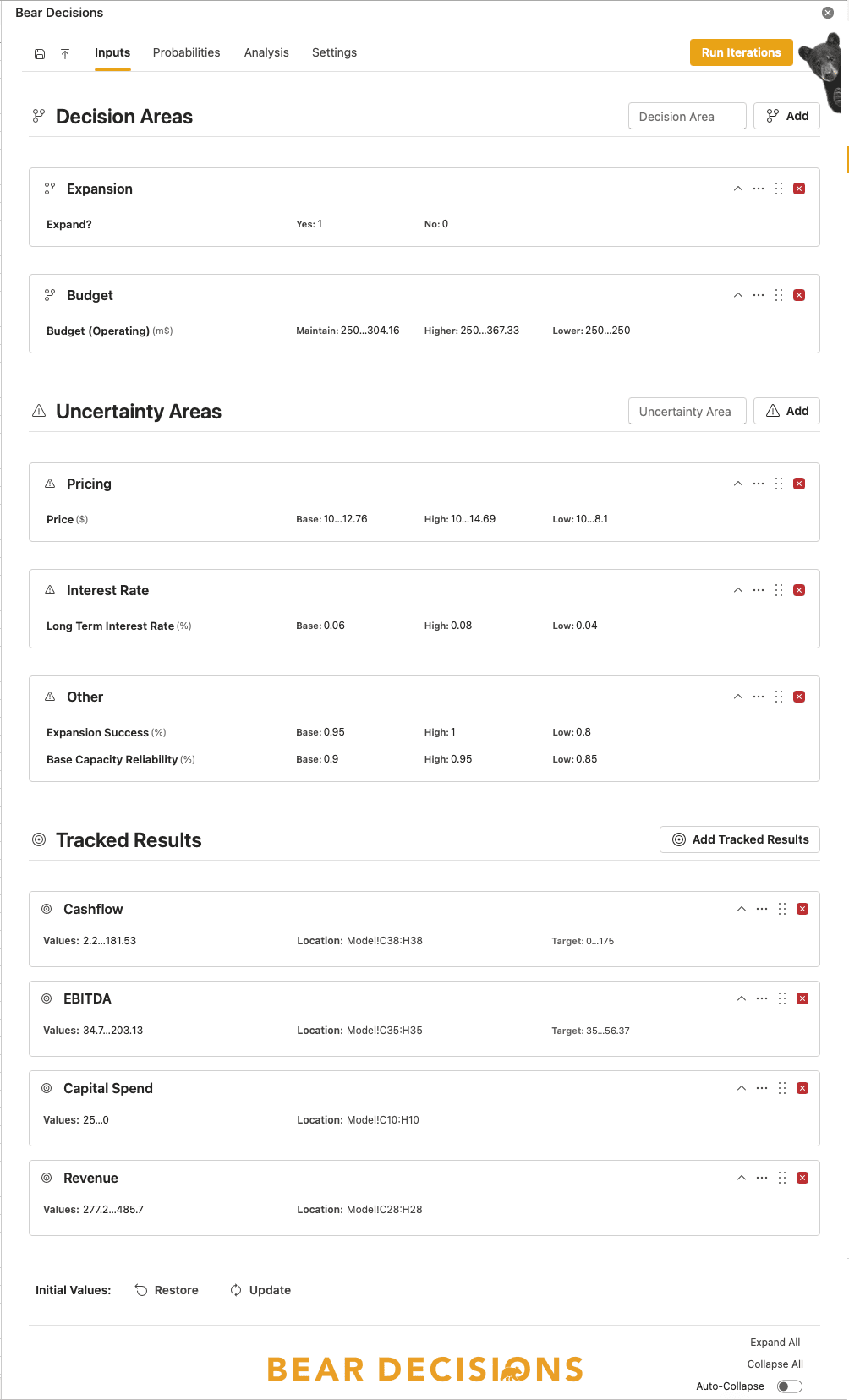
Before we go further, let's review our model in Bear Decisions to make sure everything is set up correctly.
Here are all our areas and results with the view collapsed. We recommend that you typically keep the view collapsed to make it easier to see the big picture and not get overloaded with all the details.
Special mention to the 'Auto-Collapse' button on the bottom right of the footer of the taskpane. This will automatically collapse all the areas and results for you.
You can also collapse and expand individual areas and results by clicking on the header area or the chevron in the top right corner of the area or result.
If you have defined an area within the wrong category (i.e. defined it as a decision area when it should be an uncertainty area), you can change it to the correct category by clicking on the '...' icon in the top right corner of the area and selecting "Change to Uncertainty Area" (and vice versa).
You can also change the order of the areas and results by either clicking on the '...' icon in the top right corner of the area or result and selecting "Move Up" or "Move Down" or by dragging and dropping the area or result to the new position when clicking on the 6 dot icon (⋮⋮).
Step 7: Calculate
Now it's time to run the analysis! Press the "Run Iterations" button in the top right corner of Bear Decisions and watch it fly through generating all the scenarios needed for your exhaustive analysis.
⚡ Calculation Process
- Automatic Generation: Bear Decisions will rapidly calculate all combinations of your decisions and uncertainties
- Progress Tracking: Watch as it processes through the scenarios in real-time
- Smart Caching: Results are saved automatically, so you won't need to recalculate when you reopen the document
- Dynamic Updates: If you change any inputs (initial values or alternative cases), Bear Decisions will incorporate these changes when you press "Run Iterations" again
In our facility example, Bear Decisions will calculate all 162 scenarios (6 decision combinations × 27 uncertainty combinations) in just seconds. This exhaustive analysis would take hours to do manually in Excel!
Step 8: Assigning Probabilities
Start with uniform probabilities, then refine based on your judgment:
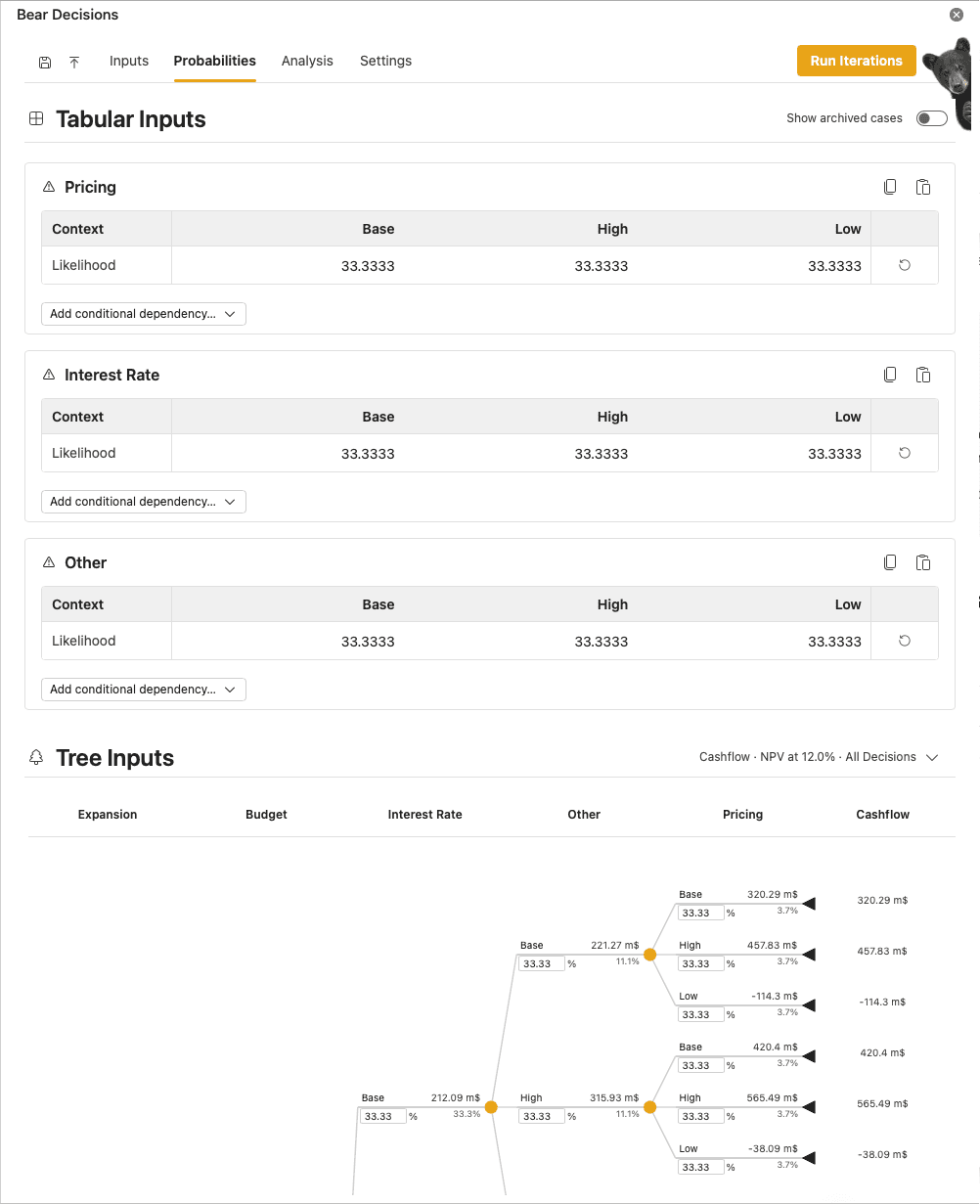
Starting with uniform probabilities
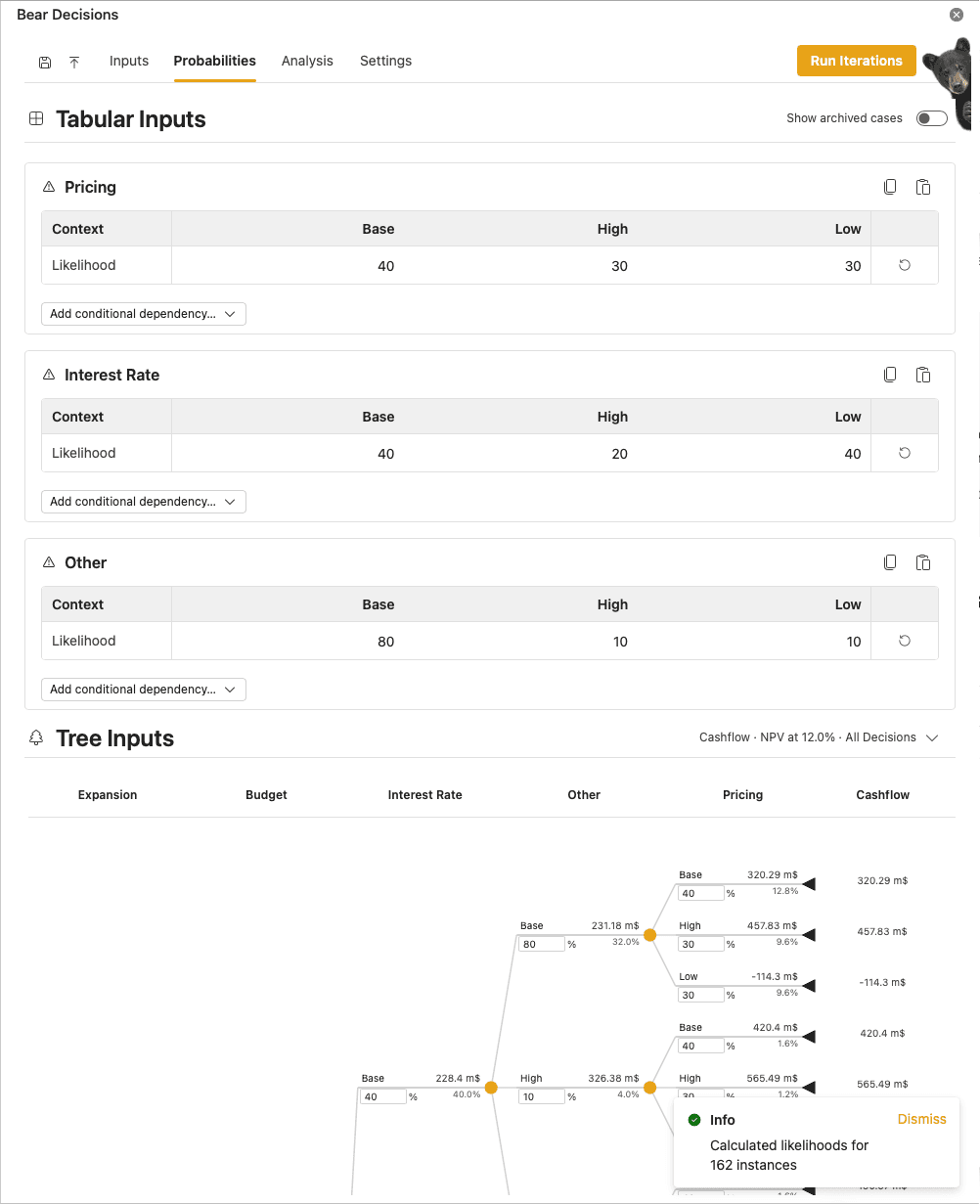
Updated based on business judgment
Probability Reasoning:
- Pricing: Applied Swanson's mean (30% low, 40% base, 30% high)
- Interest Rates: Expect rates to stay same or drop (20% high, 40% base, 40% low)
- Other Risks: Confident in base operations (10% high, 80% base, 10% low).
Alternatively, you could have added a conditional dependency to the 'Budget' decision, with the thesis that higher budget could lead to improved outcomes.
Note: You can always change these probabilities later and they will dynamically be re-calculated and applied to the analysis.
Step 9: Analyzing Results
Now the real insights begin. Start with the basic analysis view:
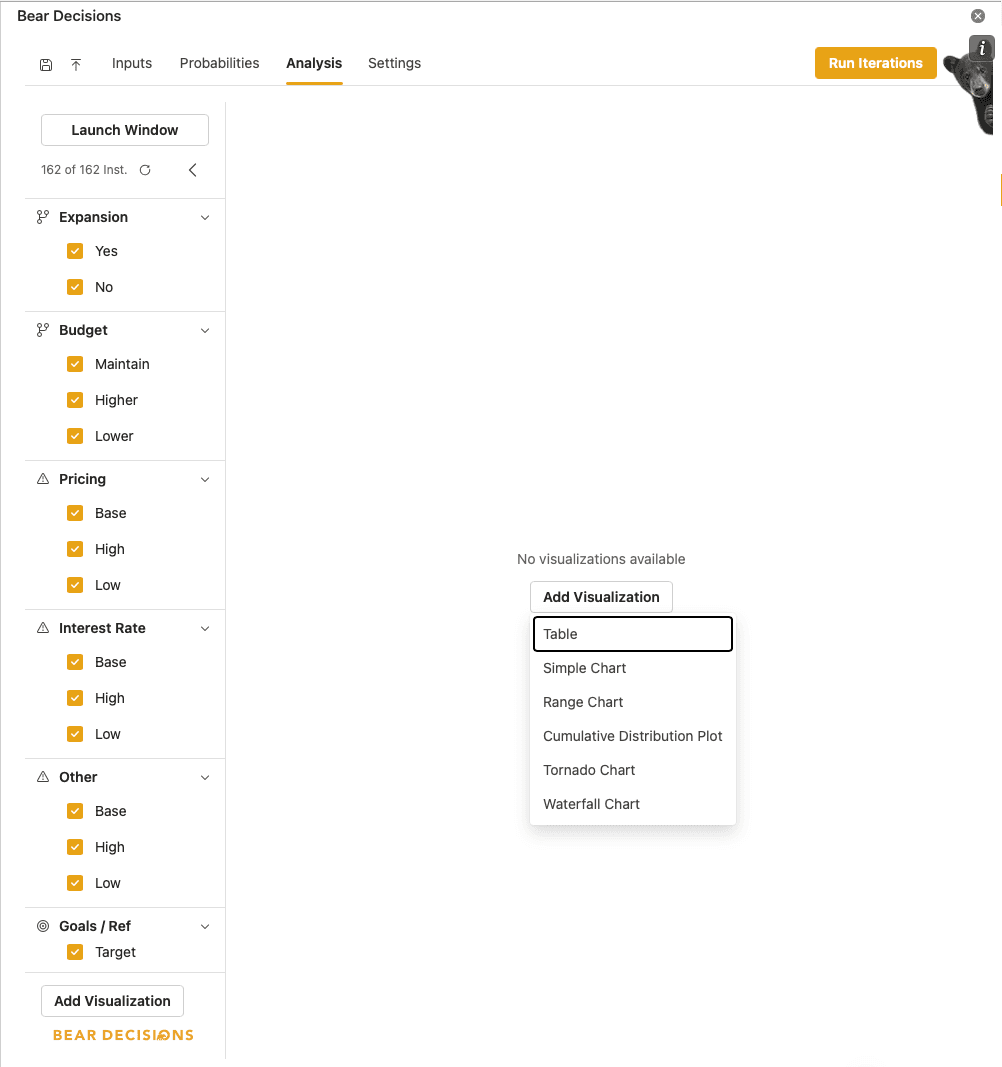
Initial analysis overview
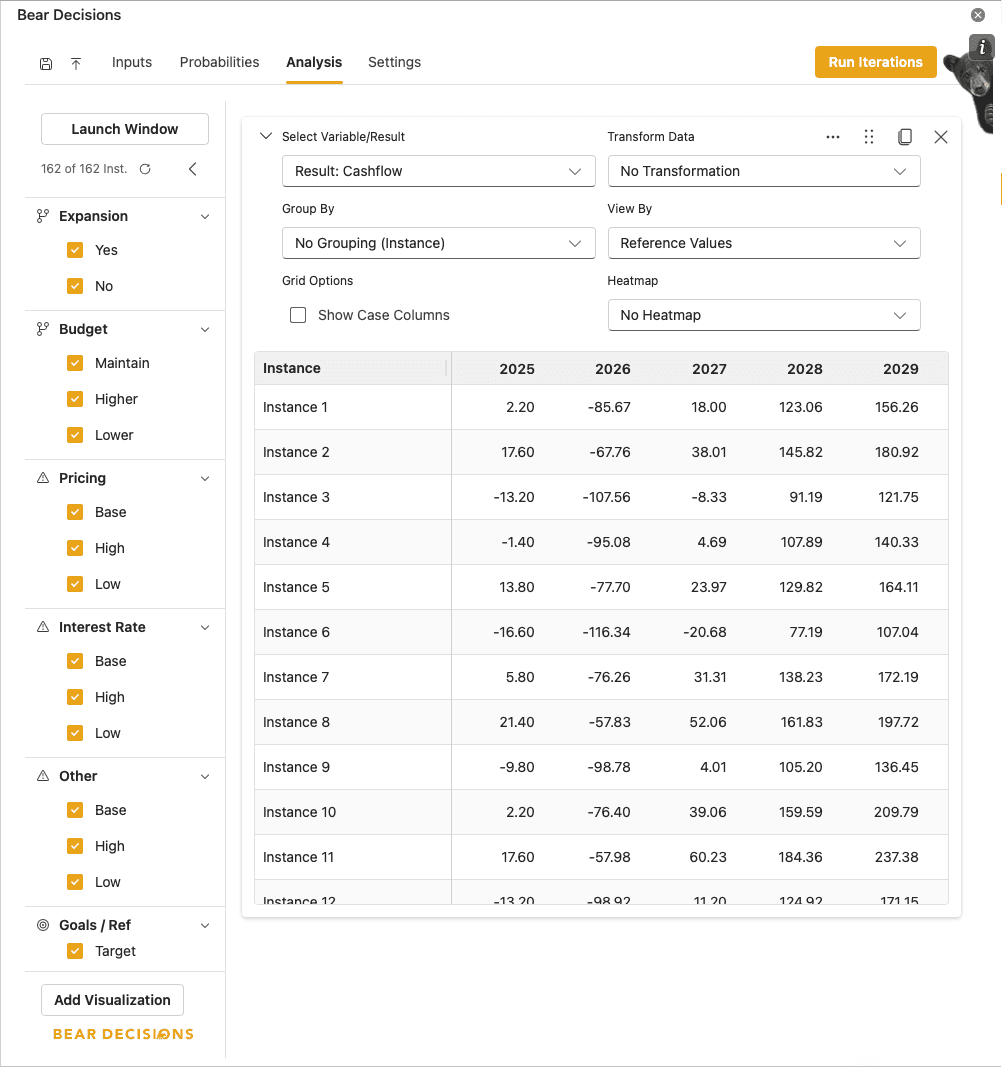
Adding a data table for detailed comparison
Step 10: Deep Dive with Dashboard View
Launch the full dashboard window for comprehensive analysis. You can resize and position multiple visualizations to gain different perspectives:
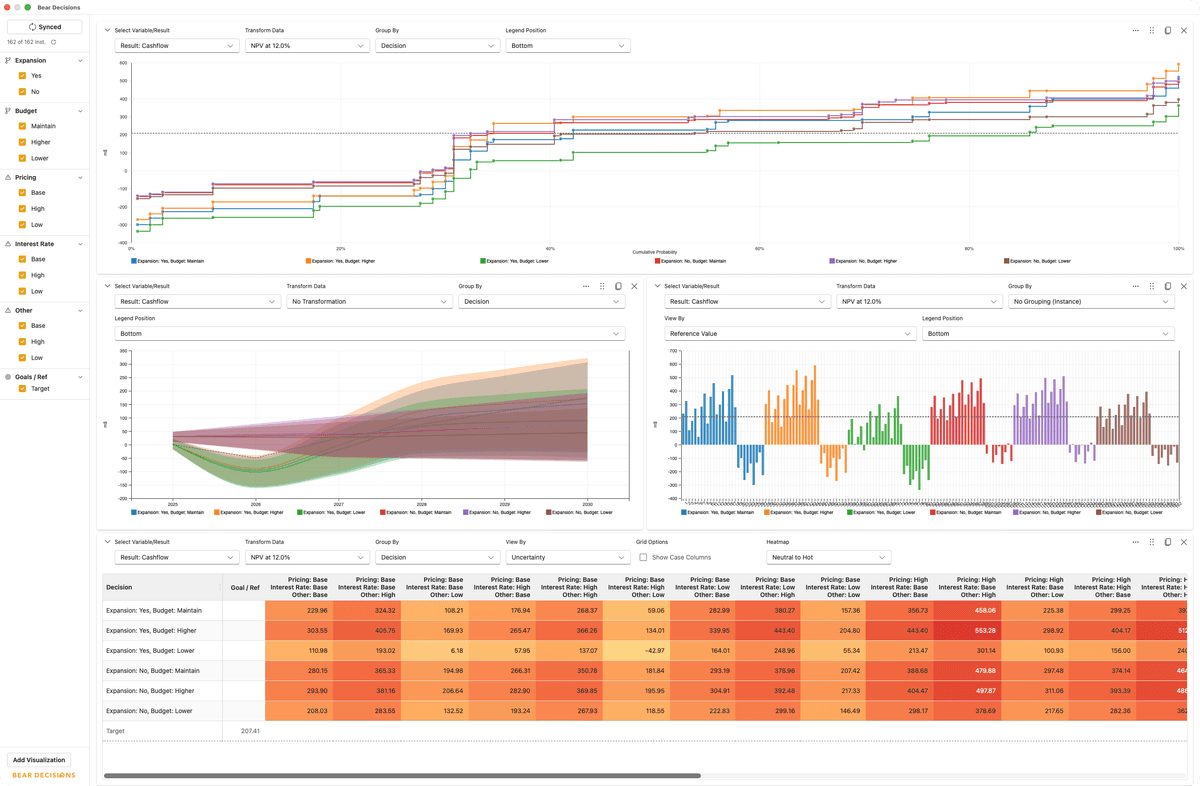
💡 Dashboard Pro Tips:
- Group by Decision or Uncertainty to rapidly gain insight on key drivers
- Select/Deselect cases from the Tree on the left hand side to "Filter" out key elements and confirm suspicions rapidly
- Add multiple visualizations of the same data for different perspectives
- Test different View By options to see different perspectives - e.g. Expected Value vs Mean
- Use the 6-dot icon (⋮⋮) in the top-left of visualizations to click, drag and reposition
- Consider the analysis horizon when doing transformations like NPV - 5 years may not capture full value of expansion
- Sort on the results to highlight the best and worst cases, and reorientate where you want to focus your attention
- Don't be afraid to play around with the settings to see what you can learn!
Step 11: Key Insights from the Analysis
⚠️ Risk Identification
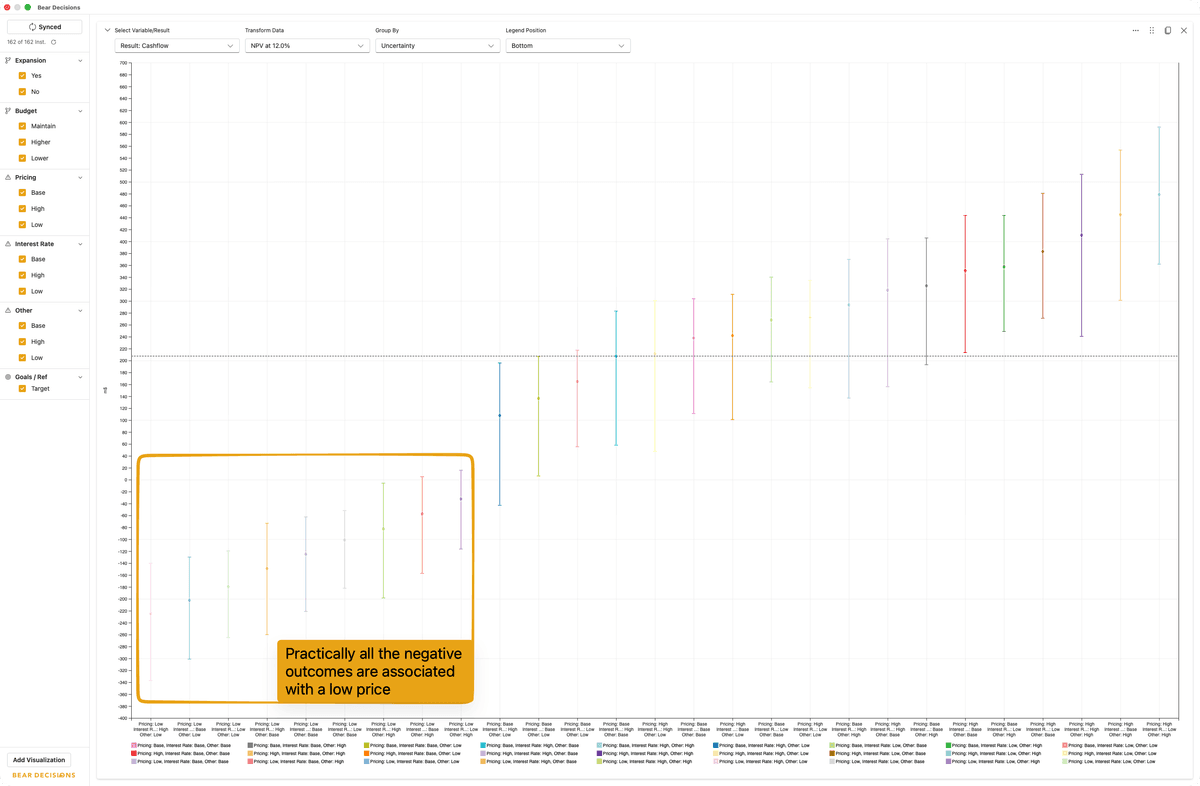
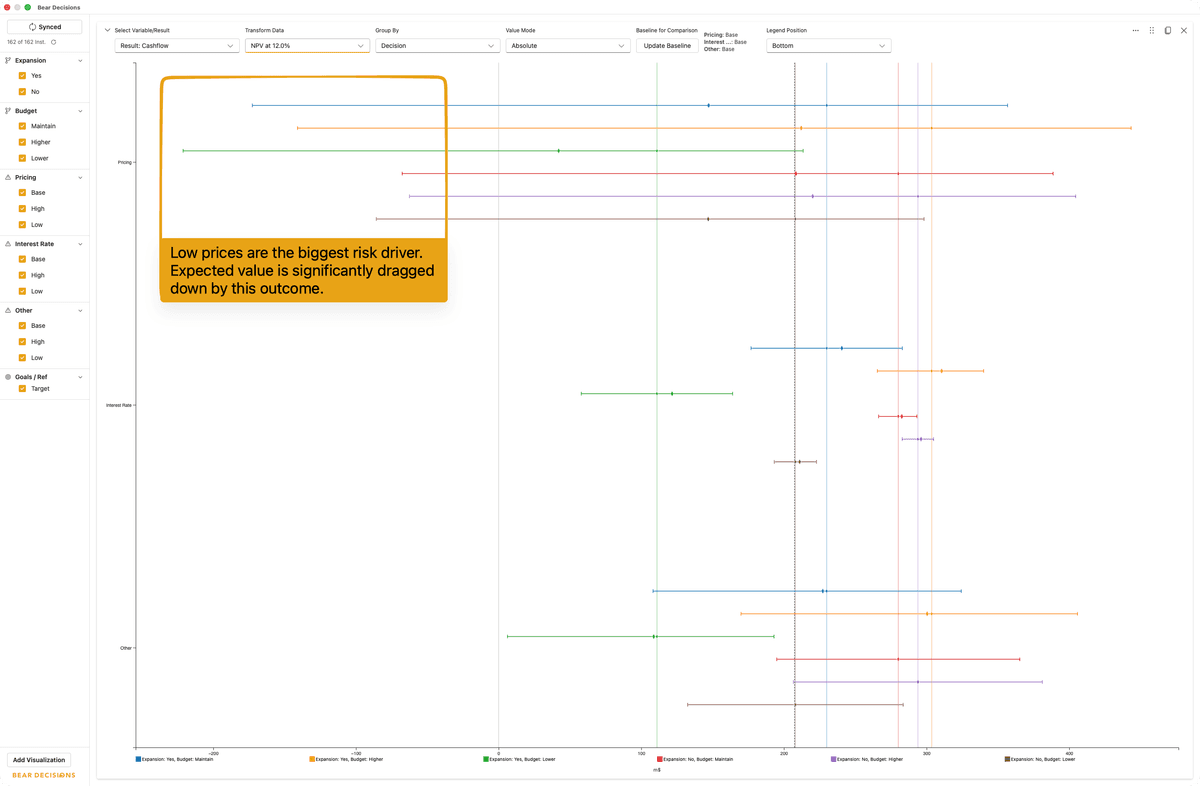
Low pricing scenarios drive almost all downside risk below $0 NPV. Consider risk mitigation strategies or alternative decisions that minimize price exposure.
This significant negative effect of low pricing outcomes can be seen in the Tornado Chart below - where it's affect is materially greater than the other uncertainties.
🤔 Strategic Observation
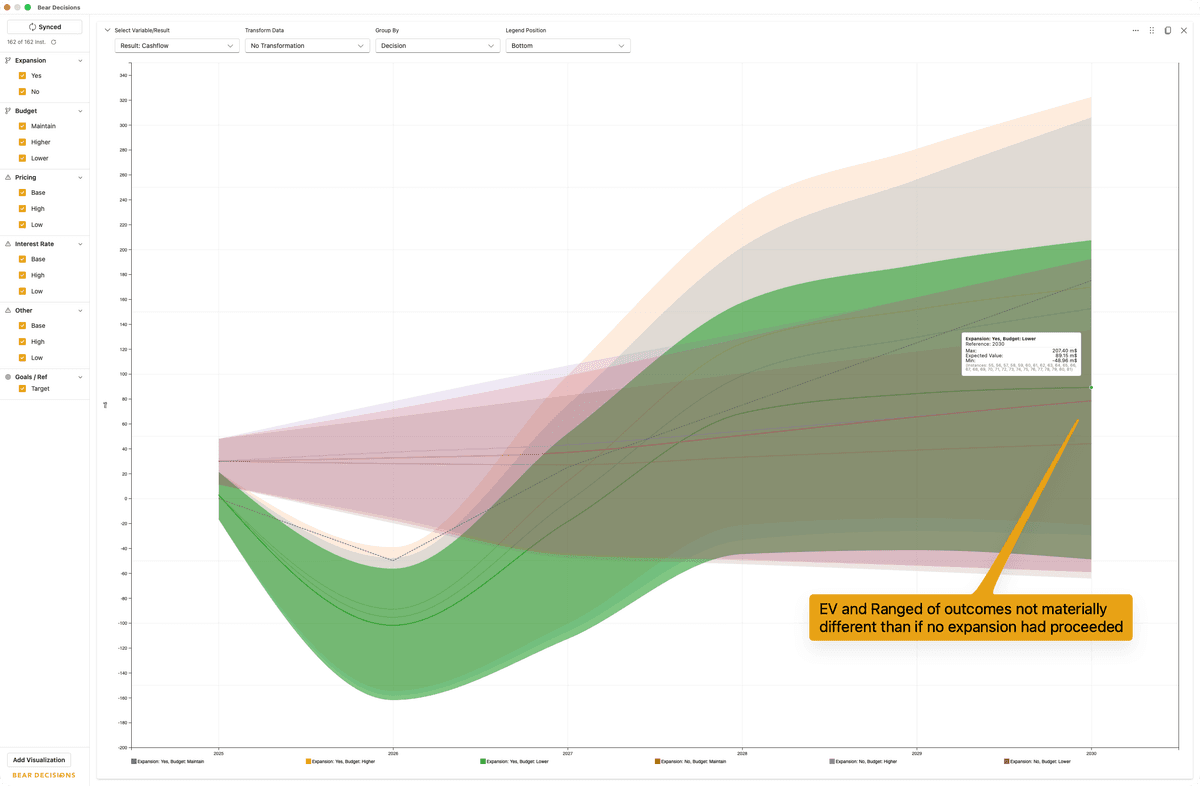
Lower budget + expansion doesn't make strategic sense together. While slightly higher exit cashflow, it comes at high risk vs no expansion. The analysis helps identify illogical decision combinations.
📈 Payback Consideration
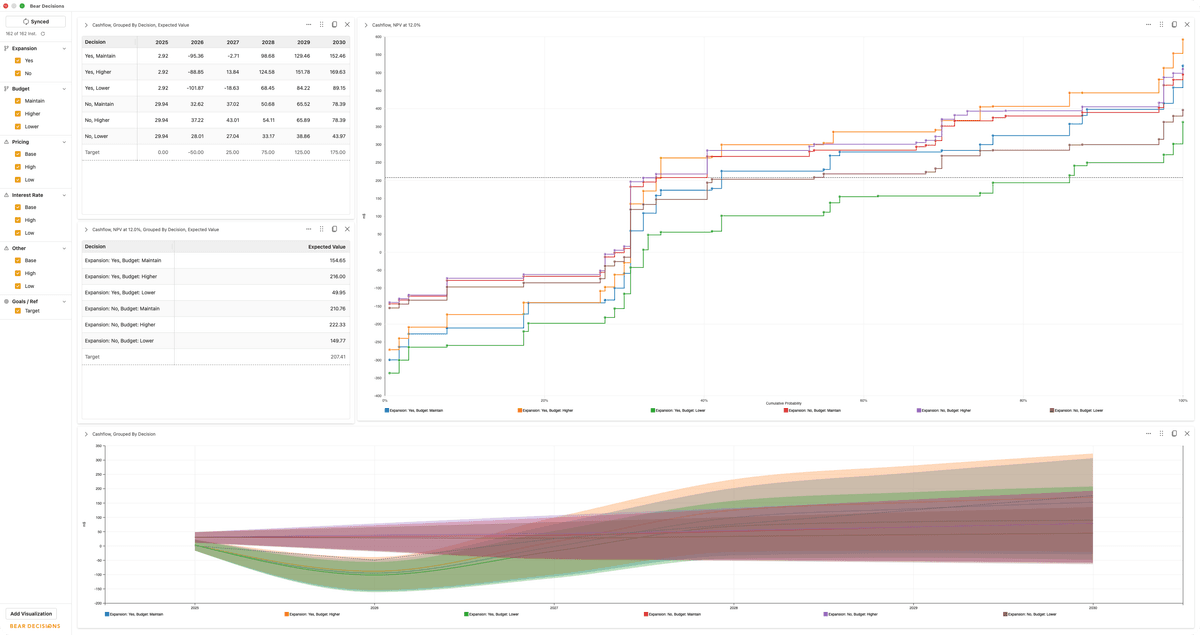
Given the capital expenditures and later-period cash flows, consider extending the analysis horizon or focusing on terminal value to fairly evaluate expansion options.
Step 12: Filtering and Refined Analysis
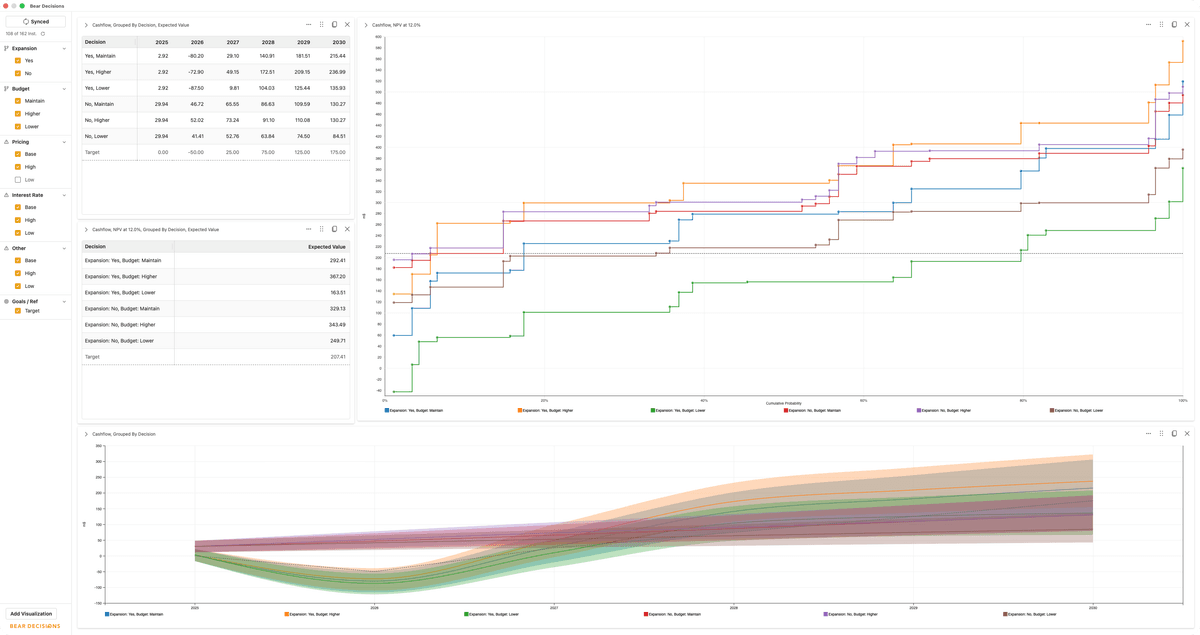
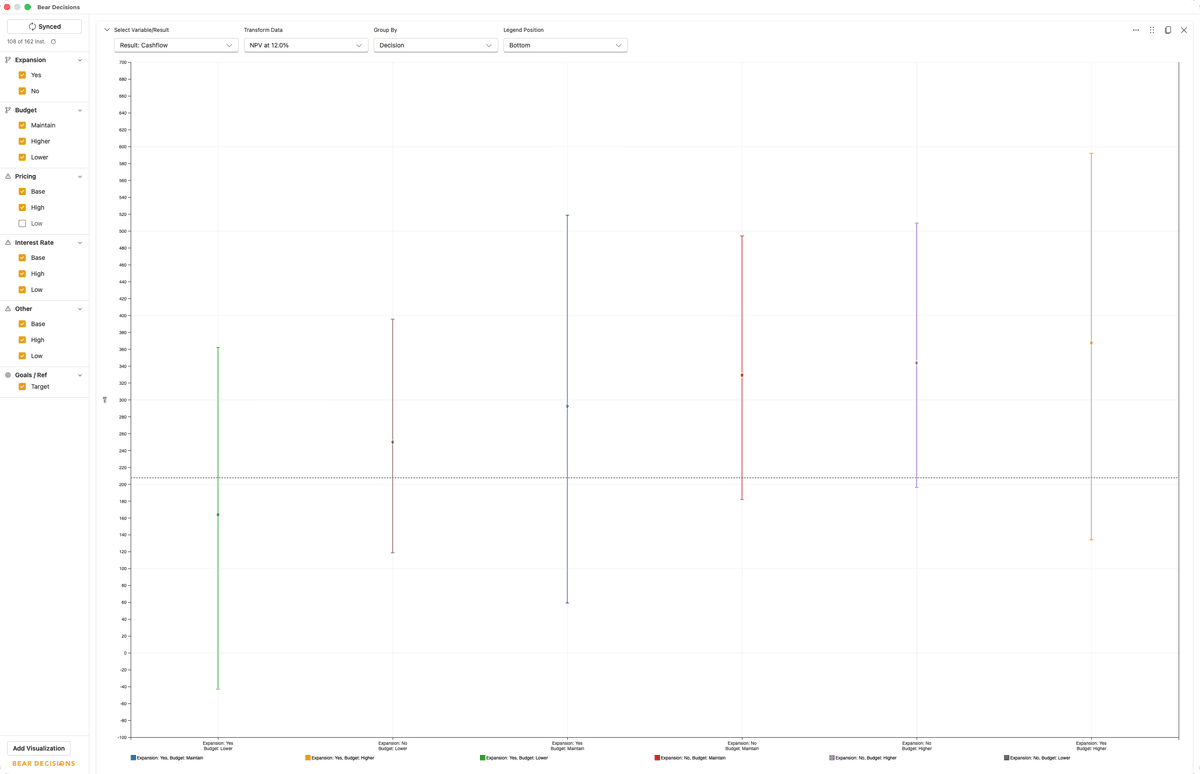
Remove problematic scenarios to help create narratives and focus on what your stakeholders need to know to make a decision:
- A Low Price environment presents significant threat and more work needs to be done to mitigate
- Once mitigated, the more important decision to get a higher EV is a Higher Budget Level
- Expanding makes sense so long as you don't have a Lower Budget Level
Step 13: Making the Decision
Based on the analysis, select your preferred scenario and push it back to Excel:
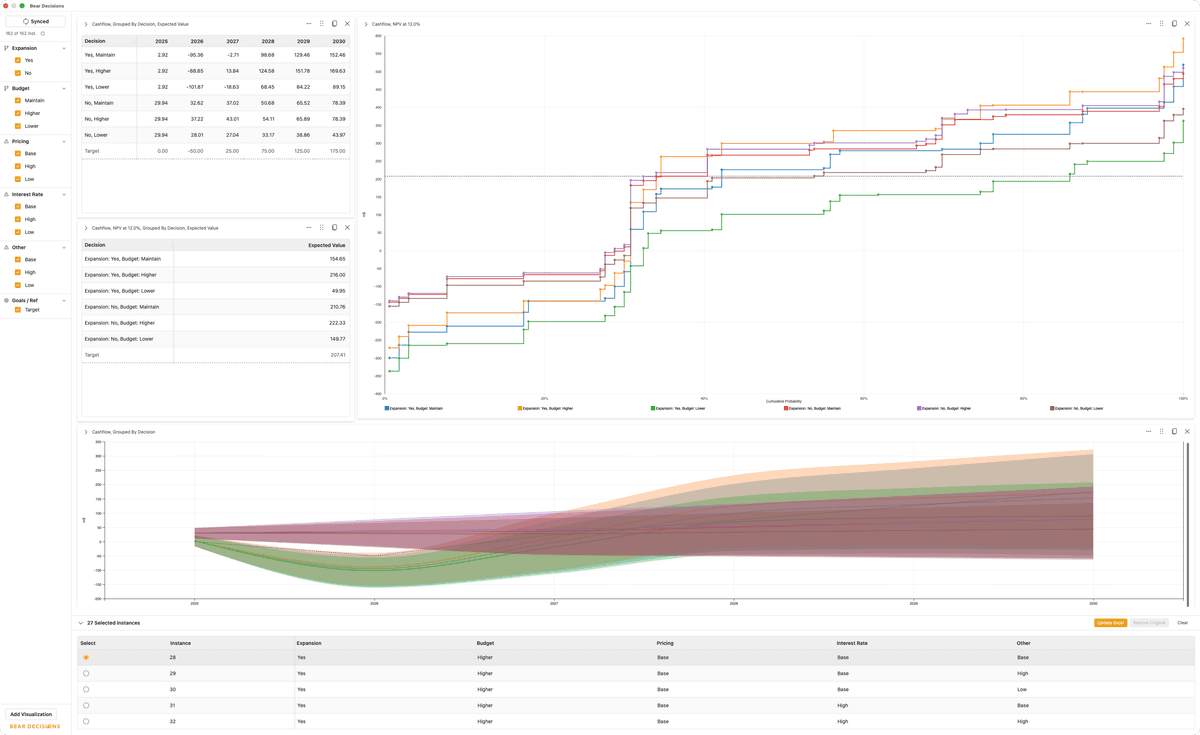
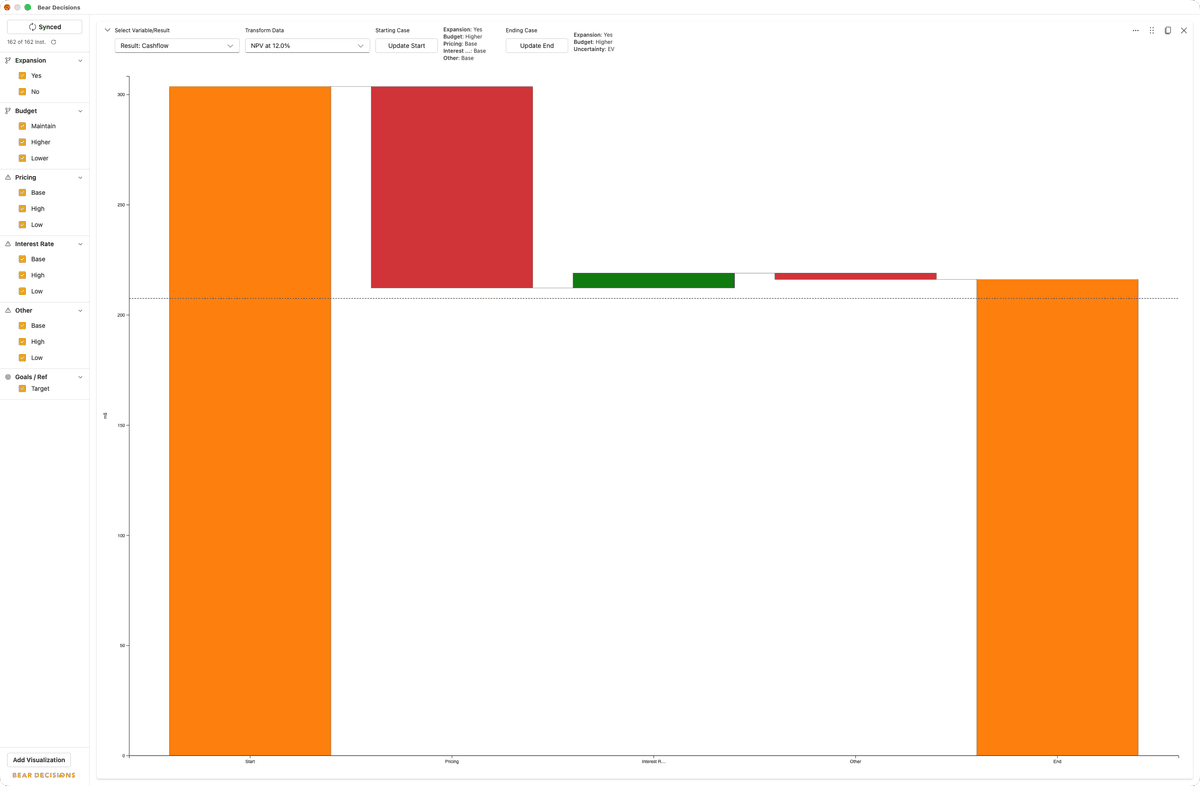
Selecting expansion with higher budget
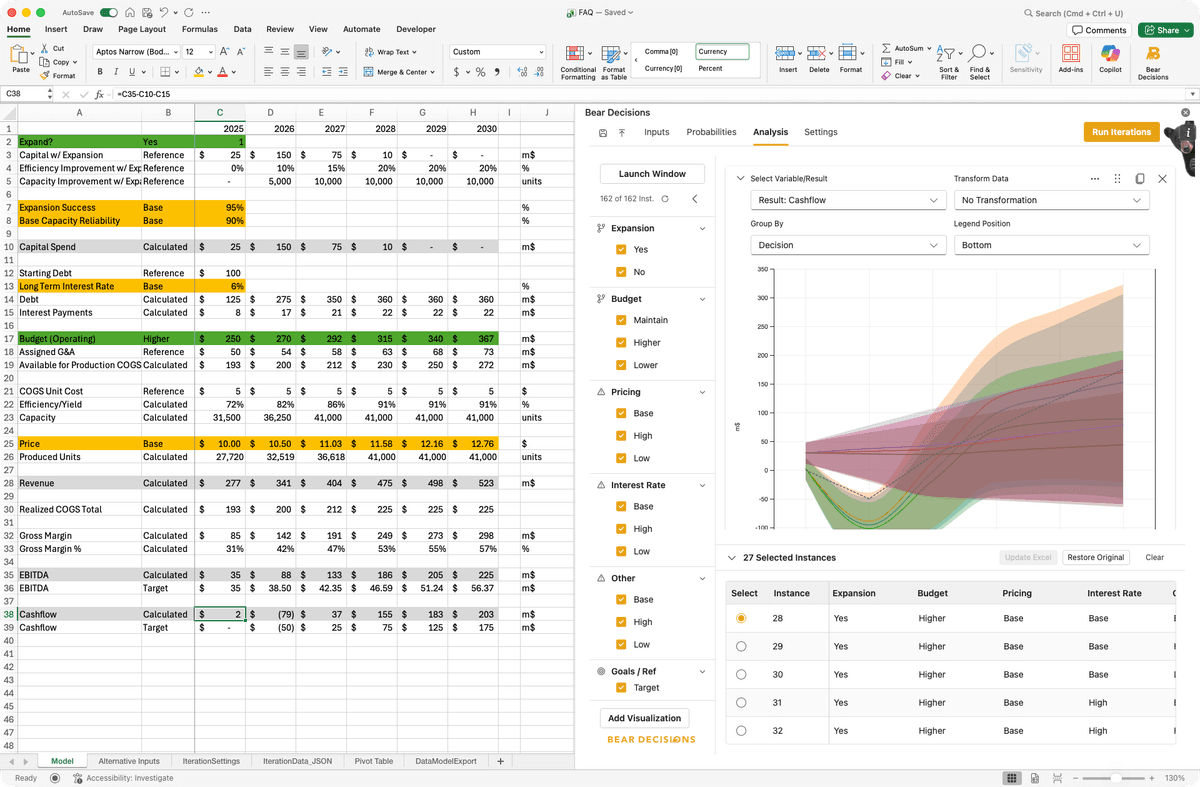
Updating Excel with chosen scenario
✅ Final Decision
Expansion with higher budget shows the highest likelihood of best outcomes.
The scenario values and case labels are automatically updated in Excel.
But...
Expected value might be quite different to the selected case so you know what you are promising to your stakeholders.
Step 14: Exporting the Data (Optional)
If you want to export the data to Excel, you can do so by going to the 'Settings' tab then clicking on the 'One Table' button. This will create a new table within the DataModelExport sheet, with everything that you need to put into a pivot table.
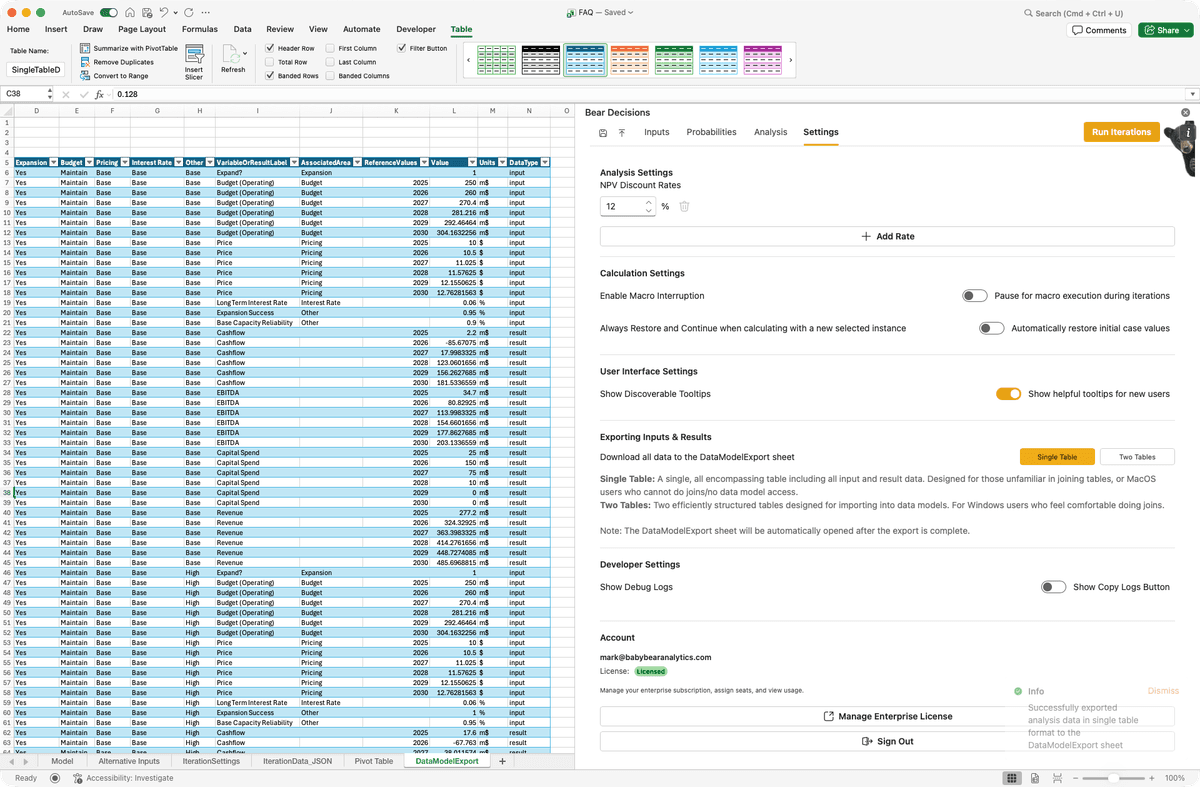
Single Table Export of all the data
What You've Accomplished
- ✅ Evaluated 162 different scenarios across 6 decision combinations
- ✅ Identified key risk drivers (pricing sensitivity)
- ✅ Discovered illogical decision combinations
- ✅ Made a data-driven decision with confidence intervals
- ✅ Updated your Excel model with the optimal scenario
Next Steps
Now that you've seen Bear Decisions in action with a real-world example, you're ready to apply these techniques to your own models. The User Guide will help you master advanced features and best practices.