Bear Decisions on Your Device
Add Bear Decisions to Excel in a few steps. It's quick, simple, and free to start.
Add directly from Excel (recommended)
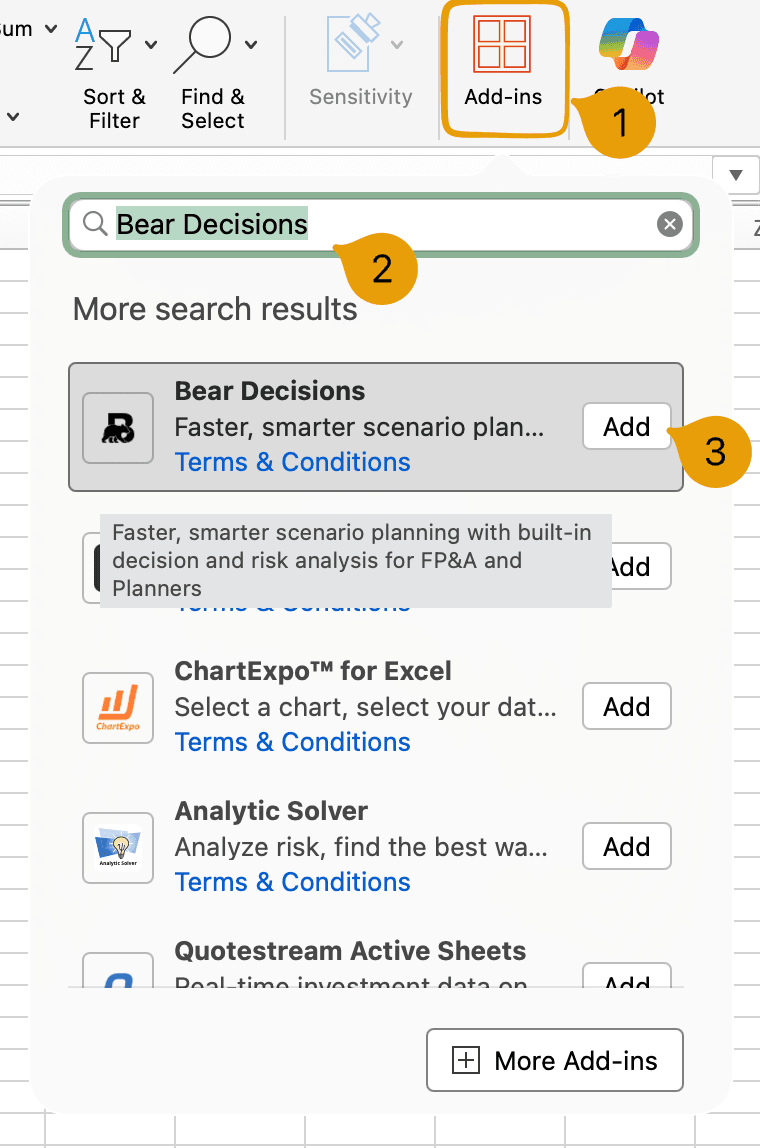
In Excel (Windows or macOS desktop), use the Add-ins experience to install Bear Decisions:
- Click Add-ins: In the Home tab of the ribbon, click Add-ins.
- Search for Bear Decisions: In the Search Add-ins bar, type Bear Decisions.
- Add Bear Decisions: Click Add and the add-in will be installed. Free 14-day trial — no credit card required.
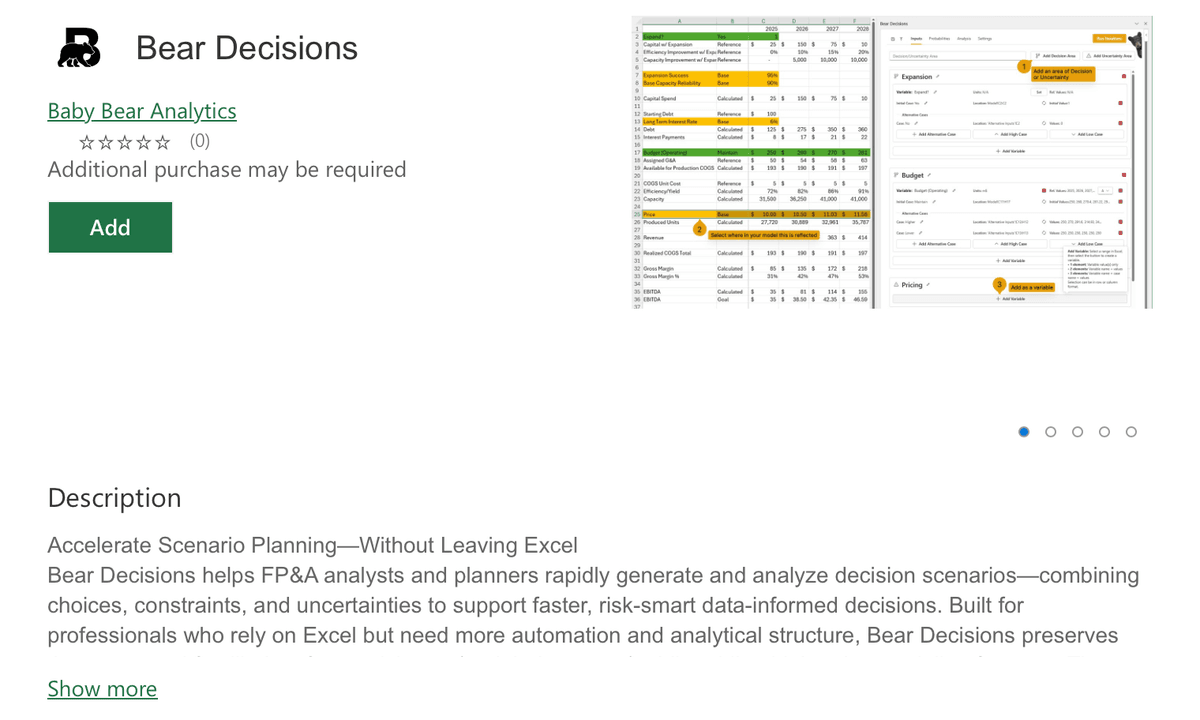
Rather than adding directly, you can also click on the add-in name to view more details from Microsoft prior to adding it to your account.
Platform Support:
Bear Decisions is supported on Excel for Windows and Excel for macOS (desktop) and the iPad edition of Excel.
It is not supported on mobile (e.g. Excel for iOS or Android).
Alternative: Microsoft Marketplace
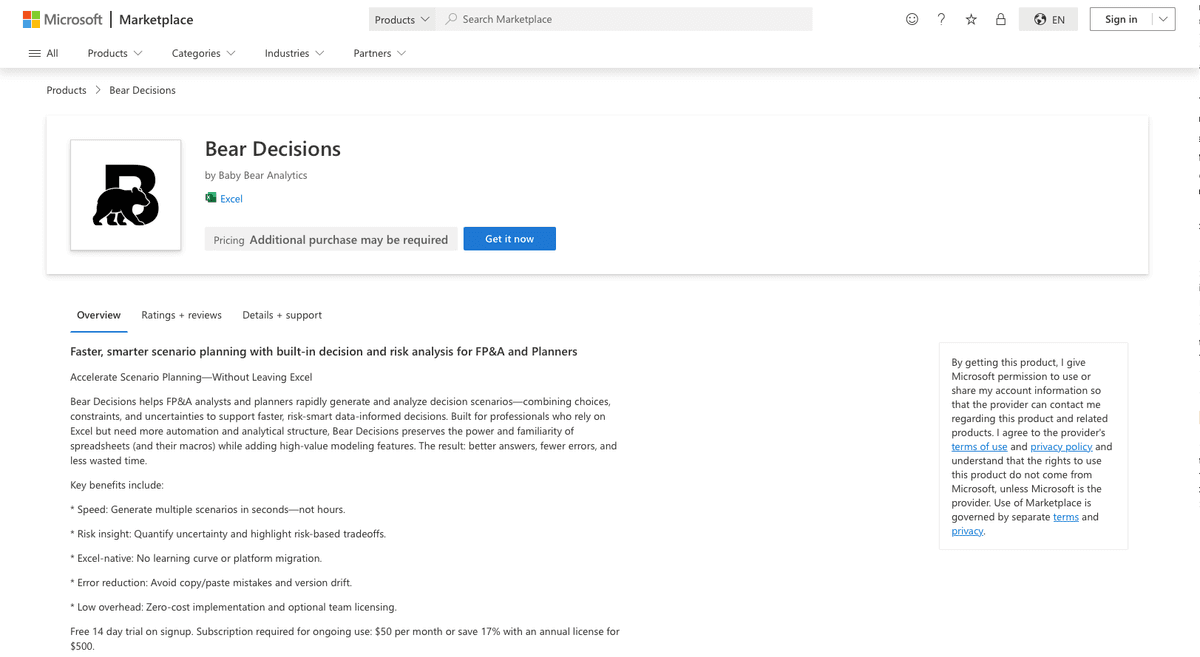
You can also add Bear Decisions from the Microsoft Marketplace directly into your account from the browser.
After Installation
Account & devices
Once added, Bear Decisions is associated with your Microsoft account until you remove it. It will be available automatically on other devices when you sign in to Excel with the same account.
Updates
Updates are applied automatically when you reload the add-in (e.g. re-click the Bear Decisions logo in the ribbon, or re-open Excel).
Next steps
Once Bear Decisions is installed and appears in your Excel ribbon, you'll need to sign in before you can run analyses. The next section covers licensing and authentication.