Probabilities & Signals
On the Probabilities tab you assign how likely each uncertainty case is to occur. As a part of this you can also define conditional dependencies between areas and adjust the likelihoods pending the outcome of decisions or other uncertainties.
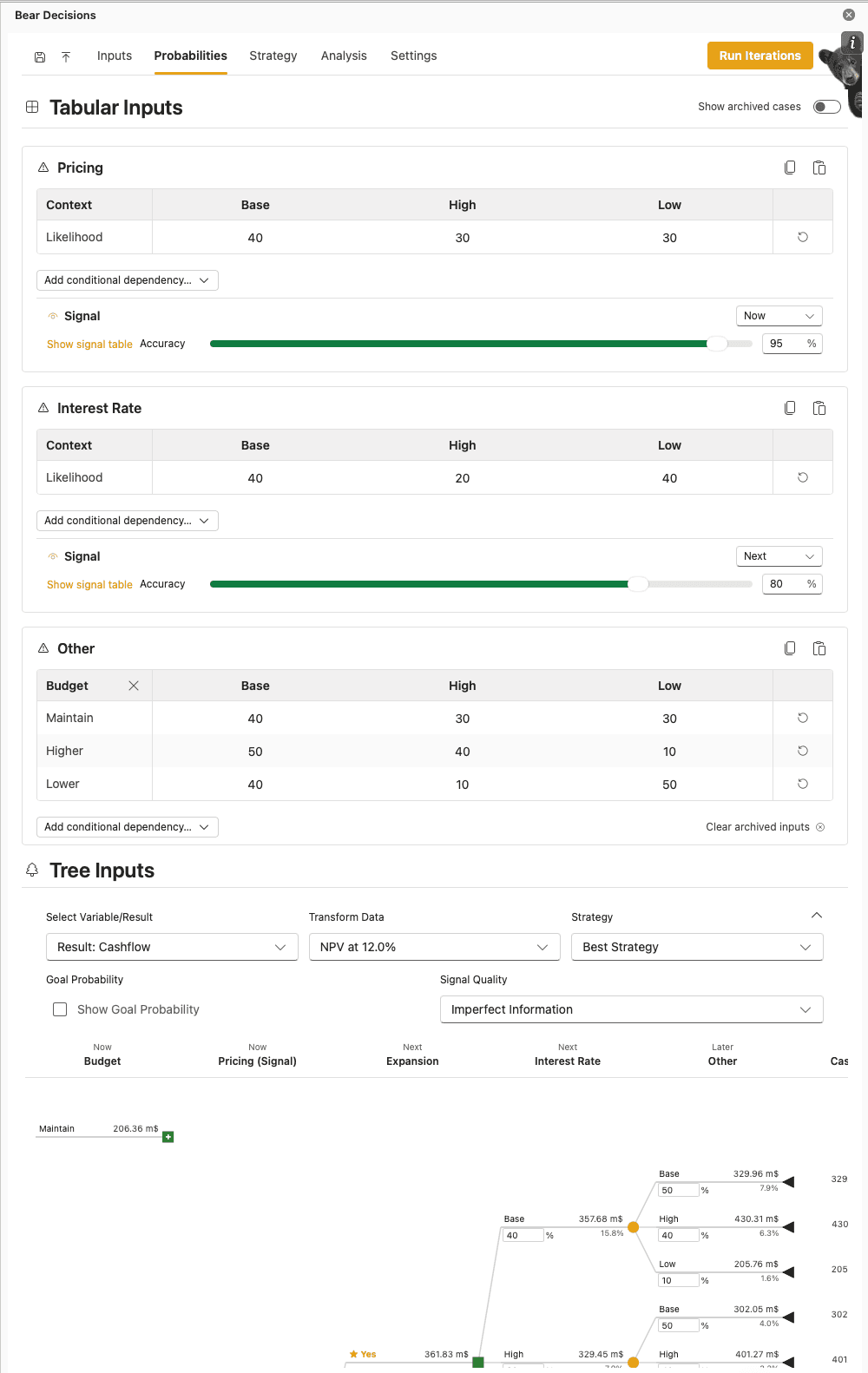
When you have enabled strategy mode and are running sequential decisions, Signals describe how confidently early observations map to those cases—they work together with raw probabilities to drive the effective likelihoods within the analysis views.
Case likelihoods
On the Probabilities tab, you set how likely each case is for every uncertainty. When you view a specific path through the tree, the product combines those likelihoods so you can read expected value and distribution-style charts in the analysis views.
By default, each uncertainty is treated independently: the split between its cases does not depend on what you chose elsewhere. If that is too simple for your analysis — for example, pricing and demand often move together (higher demand often enables you to achieve higher prices) — you can add a conditional dependency so the likelihoods for one uncertainty change when specific decisions or other uncertainty cases apply. You pick which upstream areas matter; Bear Decisions keeps the matching rows in step for you.
You can type any positive numbers you like for a split; on calculation, values are normalized so each row adds up to 100%. If a row does not add up when you leave the cell, you will be prompted to optionally fix or normalize it - or just leave it as is.
The screen is split into tabular input (full tables per uncertainty, good for overview and bulk edits) and tree input (the same model shown as a branching layout). From the tree you can add override-style exceptions: a special likelihood that only applies when a particular combination matches, without maintaining a giant grid of every possible mix by hand. Matching cases automatically pick up that override.
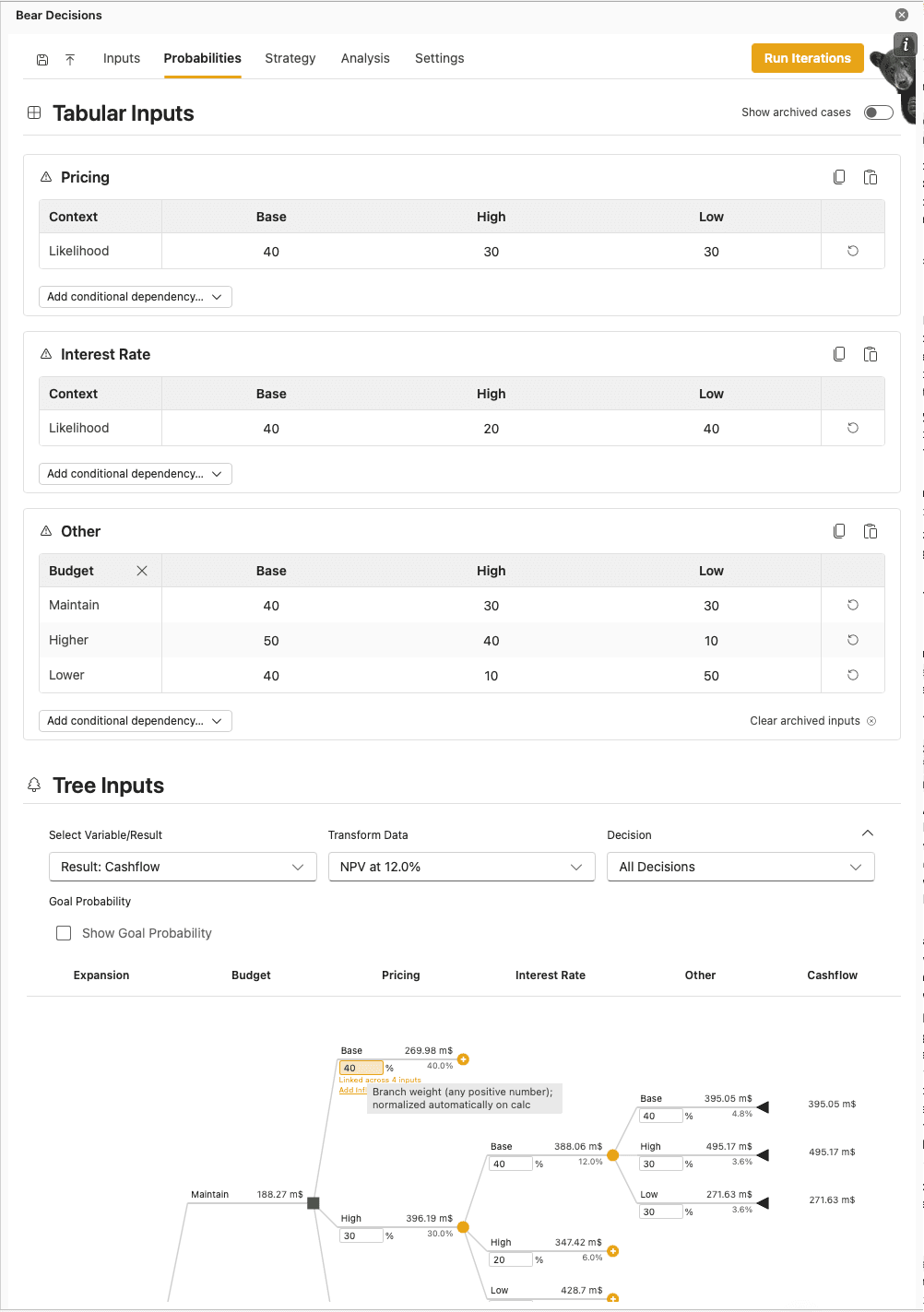
The tabular grids support copy and paste with Excel — including headers where needed — so you can edit in a spreadsheet and paste back. You can also sort columns inside the tables to reorder cases for review.
Archived inputs: If you remove a conditional rule and add it back later, Bear Decisions will automatically remember the numbers you used before - making it easy to test changes and revert with no headaches. To discard that stored setup and fall back to defaults, use the Clear archived inputs button on the bottom right of the tabular section for that uncertainty. After clearing, previously saved splits for that context are forgotten.
When you select or hover an editable likelihood in the tree, the UI shows which relationships that cell is tied to and how many matching cells you are updating at once. Clicking on the Add Influencing Factors button will open a modal where you can edit the table view or add an influencing-factor override without leaving the tree.
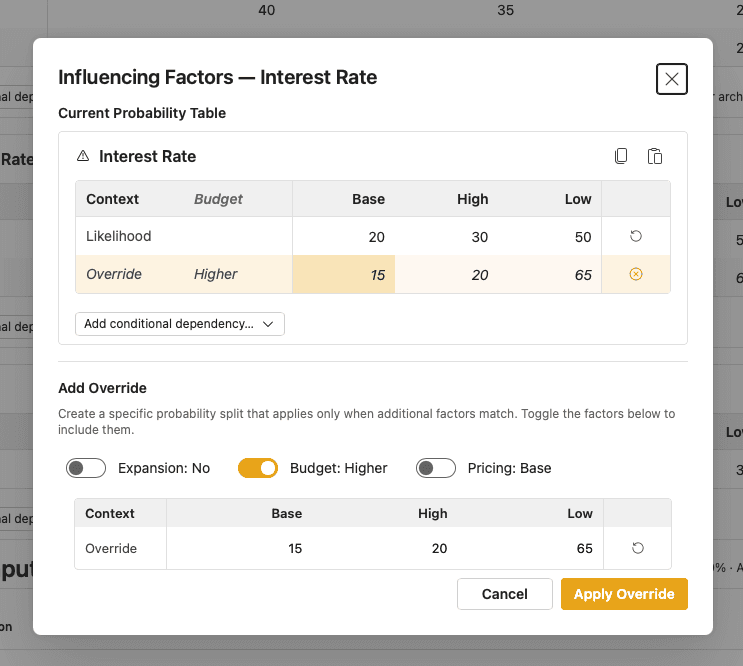
Probability guidelines:
- When you add an uncertainty, cases start with equal likelihoods until you change them.
- Each row of a split should represent a full picture of that uncertainty (100% across its cases). Normalization will run automatically on calculation, alternatively you can trigger this to change the input numbers or manually adjust the rows before you proceed.
- You can update probabilities any time; scenario-level weights refresh without rerunning the full iteration pass unless your underlying case values changed.
- Use business judgment, history, or expert input. When you are unsure, nudge likelihoods to see whether outcomes move enough to matter — precision is not always worth it if the decision stays the same.
Signals
Uncertainties that resolve earlier in the timeline can emit a signal: your read on which case is unfolding. That signal works with case probabilities to produce effective likelihoods in downstream analysis.
By default, signals are assumed to be 8 out of 10 perfect - meaning that you are 80% confident in the signal you are receiving, with an equal likelihood of each alternative case within the remaining 20%. You may choose to adjust this to reflect the imperfect nature of the information that you will be receiving - or even give a perfect signal by moving the slider to 100%.
Alternatively, you may choose to adjust the likelihood of each case within the signal table - which will then be used to calculate the effective likelihoods in the analysis views. Within this input mode you are able to define how confident you are in the signal you are receiving for each case, as well as the likelihood of each case being the correct one (and the split of you being wrong). This is particularly useful if you want to represent that you might be 80% confident about the signal being "High" but think that in this case there is only a very small chance of it being "Low" with the remainder largely allocated to a "Base" case (or vice versa).
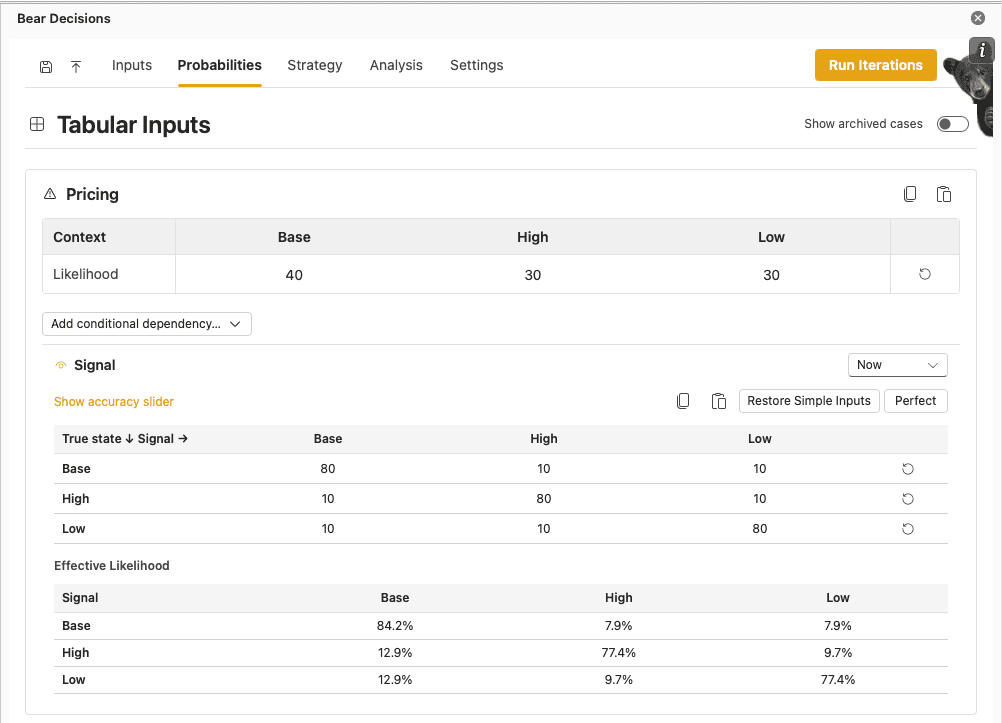
The slider and table inputs are saved separately for each uncertainty area, enabling you to rapidly toggle and test out the impact of different approaches. If you change the slider input and want the table to update to match, then you can press the "Restore Simple Input" button to have the table values align with the current slider input. You can also click the "Perfect" button to have the table values align with a 100% confidence in the signal you are receiving for each case.
Similarly to the probabilities table, copy and paste is supported with Excel including headers for the Signal table.
The effective likelihoods are calculated by multiplying the likelihood of the signal you are receiving for each case by the likelihood of that case being the correct one, then normalized to ensure that the total likelihood of all cases is 100%.
Next Steps
Once you have configured the probabilities, you are ready to start exploring the results in the Dashboard & Visualizations.