Documentation
Creating Analyses
Learn how to set up analyses in Bear Decisions, define decision and uncertainty areas, add variables, configure alternative values, set up tracked results and their reference goals, run calculations, and assign probabilities.
Overview: How Bear Decisions Works
Bear Decisions transforms your existing Excel models into powerful scenario analysis tools by systematically testing different combinations of your decisions and uncertainties using the existing Excel formulas as an engine.
Here is the core workflow you will follow in the sections below:
- Decision Areas: Define the choices you control
- Uncertainty Areas: Define external factors that could impact results
- Variables: Add variables to each area to represent where in the model that decision or uncertainty is located
- Alternative Values: Specify the different alternative cases for each area
- Tracked Results: Choose which outputs to monitor across scenarios and what goals to reference their performance against
- Calculate: Run iterations so the add-in generates all scenario combinations and fills results from your workbook
- Specify Probabilities: On the Probabilities tab, set how likely each uncertainty case is (including optional conditional rules), then refine as you learn
- Analyze: Use dashboards to extract insights and make decisions — see the interpreting results guide for detail
Probabilities and analysis are meant to be used together in a loop. Early on, your uncertainties are rarely fully nailed down, and that is normal. Part of the work is to try likelihoods, see which risks actually move the outcomes you care about, and adjust both the model and the assumptions until the picture is clear enough to decide. You can return to the Probabilities tab or rerun calculations whenever your judgment or data changes.
Managing Analysis Complexity
As you define areas and cases in the steps that follow, the number of scenarios grows quickly. The notes below explain how that count is built so you can keep the model focused on what matters and stay within a comfortable size before you add variables and run calculations.
Scenario Count Management
Bear Decisions calculates all combinations of your decisions and uncertainties. The total number of scenarios equals:
or, put another way:
💡 Performance Recommendation:
Try to keep your total scenarios under 1,000 for optimal performance. While Bear Decisions can handle more, you will start seeing diminishing returns in analysis value beyond this point. Focus on the most impactful decisions and uncertainties.
Remember you can always leave an area in with the initial variable, just removing the alternative cases if you do not want to test them all at a single time.
Example Scenario Calculation
- 2 Decision Areas with 2 and 3 options = 6 decision combinations
- 3 Uncertainty Areas with 3 cases each = 27 uncertainty combinations
- Total scenarios = 6 × 27 = 162 scenarios
Common Setup Patterns
These examples are templates, not requirements. When you name your own decision areas, uncertainties, and tracked results in the steps ahead, you can compare your structure to patterns like these to see if anything important is missing or over-expanded.
Financial Planning Analysis
- Decision Areas: Investment level, Financing method, Market timing
- Uncertainty Areas: Market growth, Interest rates, Competition
- Tracked Results: NPV, IRR, Payback period, Cash flow
Budget Planning Analysis
- Decision Areas: Department budgets, Headcount, Capital expenditure
- Uncertainty Areas: Revenue growth, Cost inflation, Regulatory changes, Team performance
- Tracked Results: Total budget, Variance to target, Department ratios
Project Analysis
- Decision Areas: Project scope, Resource allocation, Timeline
- Uncertainty Areas: Technical risks, Market conditions, Regulatory approval
- Tracked Results: Project cost, Completion time, Success probability
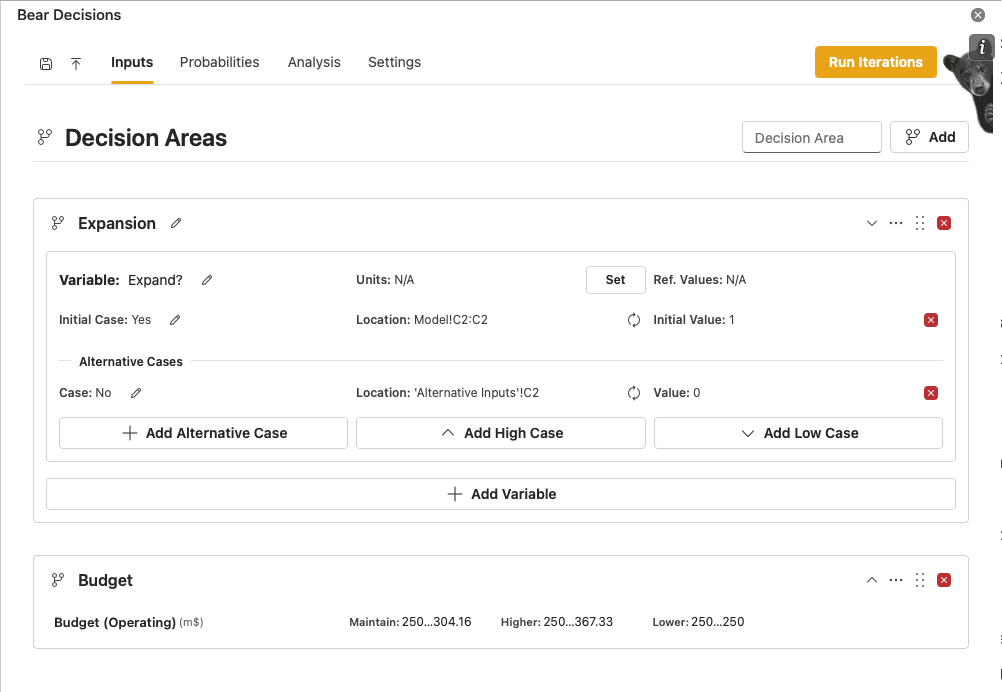
Step 1: Define Decision Areas
Decision areas represent the incremental choices you control in your analysis. These are the strategic options you are trying to decide between. Each area is considered independent of the others, and the analysis will test all combinations of decisions.
Setting Up Decision Areas:
- Type the area name (e.g., "Expansion", "Budget Level")
- Click "Add" button on the Decision Area header
Note that if no label is defined then a default label of "Decision X" will be used where X is the number of the decision areas defined to that point.
Step 2: Define Uncertainty Areas
Uncertainty areas represent external factors that could impact your results but are outside your direct control. You have already quantified a case within your existing Excel model. Adding this area enables you to input alternative deterministic outcomes for each area.
Each case within an area has its own likelihood of occurrence, and by default each uncertainty is treated as separate from the others when you combine scenarios. The analysis tests all combinations of uncertainty cases; on the Probabilities tab (later) you can optionally tie some likelihoods to specific decisions or other uncertainties.
Setting Up Uncertainty Areas:
- Type the area name (e.g., "Market Conditions", "Escalation")
- Click "Add" button on the Uncertainty Area header
Note that if no label is defined then a default label of "Uncertainty X" will be used where X is the number of the uncertainty areas defined to that point.
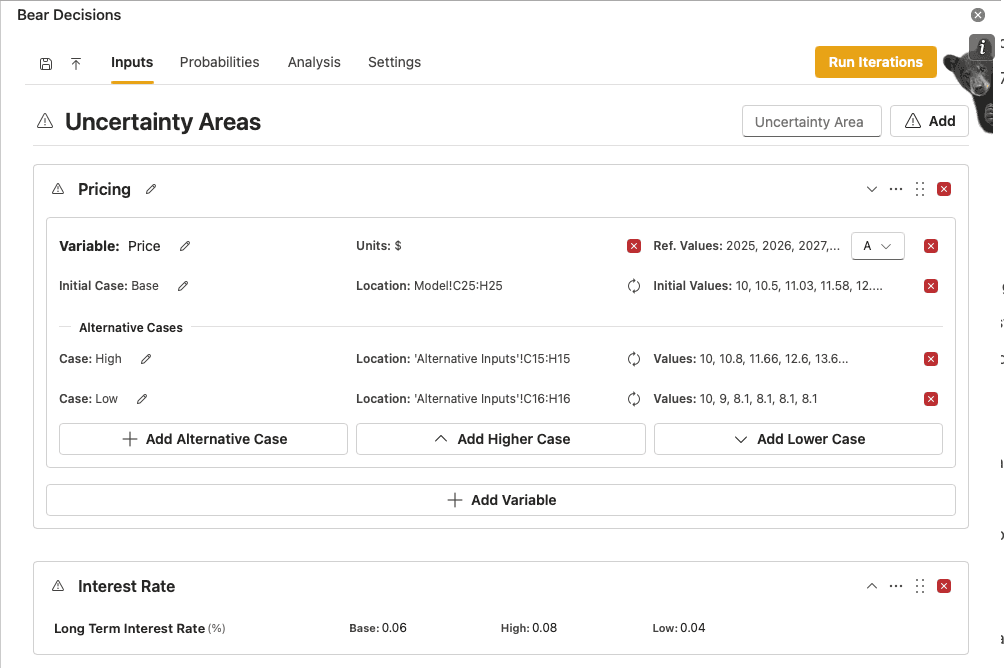
You must define at least one area of decision or uncertainty to run an analysis.
If you define an area as an uncertainty area incorrectly, then you can change it to a decision area by clicking on the "..." icon in the top right corner of the area and selecting "Change to Decision Area" (and vice versa).
Step 3: Add Variables to Areas
Once you have defined your decision and/or uncertainty areas, you need to add variables that specify where in your Excel model the associated inputs are located.
Adding Variables:
- In Excel, highlight the cells that represent the area (decision or uncertainty)
- Press "Add Variable" in Bear Decisions
- Name the variable appropriately (e.g., "Capital Spend", "Budget Level", "Market Growth") if it was not already included in the highlighted cells.
- Name the case appropriately (e.g., "Current", "Optimistic", "Pessimistic") if it was not already included in the highlighted cells.
- Set reference values and units if applicable by highlighting the cells containing the values then pressing "Set" appropriately.
A periodicity will automatically be applied to the whole variable based on the reference values, though you may choose to change this if you wish.
Note: When adding the initial case, you may choose to include just the values for the variables, or alternatively also highlight the label for the variable and the case name if they are in a continuously connected cell range.
Note: Only if the case label is included within the highlighted cells will the case names be automatically updated when you calculate or select a specific instance.
Multiple Variables per Area
A single area can contain multiple variables. For example:
- Marketing Strategy Decision Area: Advertising budget allocation, Channel selection, Campaign duration
- Escalation Uncertainty Area: Steel price escalation rate, Energy cost escalation rate, CO2 tax escalation rate
Each variable has its own inputs, but they are grouped together because they represent related aspects of the same decision or uncertainty theme.
⚠️ Important Variable Requirement Guidelines:
- Each variable should represent a direct input that drives your model i.e. use input variables, not calculated cells (Bear Decisions copies values during the iteration process, replacing formulas)
- You may need to add extra input cells within your model if your idealized current inputs have calculations incorporated into them and adjust the formulas to handle the switching logic
Step 4: Configure Alternative Cases for each Variable
Alternative cases define the different values for each variable within a decision or uncertainty area. These represent the specific options you want to test. You can choose to add pre-defined alternative values, or alternatively define how you want to factor your initial values to achieve the same outcome.
Adding Alternative Cases
- For each Variable within an Area, highlight the cells containing alternative values
- Press "Add Alternative Values" for the corresponding variable
- Name the case appropriately (e.g., "Current", "Optimistic", "Pessimistic") if it was not already included in the highlighted cells.
- Repeat for each case you want to test
Note: When adding the alternative case, you may choose to include just the values, or alternatively also highlight the label for the case name if they are in a continuously connected cell range. You may also import multiple alternative cases at once by simply highlighting the entire case range.
and / or...
Factoring the Initial Values to create Alternative Cases
- For each Variable within an Area, simply click on either "Add High Case" or "Add Low Case". This will create a new case for the variable with defaults.
- You can choose the edit the default settings by clicking on the gear icon. This will open a dialog box where you can adjust the settings for how you want to factor the initial values
- You can choose how to apply the delta to the initial values - either as a scalar multiplier, or as an addition/subtraction of absolute values
- You can also choose to factor the values immediately, or over a timeframe if it is an array
- Once you have adjusted the settings, click "Save" to update the case's values
- Repeat for each case you want to test (up to 4 high and 4 low cases)
⚠️ Critical Case Completeness Rule:
All cases must have inputs for every variable within an area, or that case will be skipped as ill-defined. If you have 3 variables in an uncertainty area, each case must provide values for all 3 variables.
Step 5: Set Up Tracked Results
Tracked results are the key outputs you want to monitor across all scenarios. These become the key metrics you will analyze in your dashboards.
Adding Tracked Results:
- In Excel, highlight cells containing the results you want to track
- Press "Add Tracked Results" button on the Tracked Results header (or just "Add" if the screen is narrow)
- Name the result appropriately (e.g., "NPV", "Cash Flow", "EBITDA") if it was not already included in the highlighted cells.
- Set reference values and units if applicable by highlighting the cells containing the values then pressing "Set" appropriately.
- Repeat for each key metric
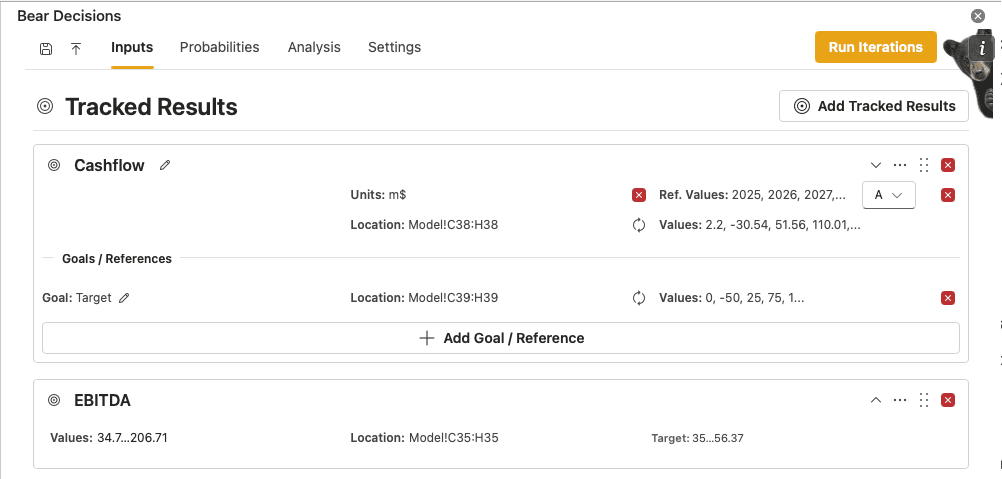
For tracked results, you can also define goals or reference values for comparison:
Adding Goals / References:
- In Excel, highlight cells containing your goal/reference values
- Press "Add Goal / Reference" for the corresponding tracked result
- Name the goal/reference appropriately (e.g., "Target Cashflow", "Reference Cash Flow", "Reference EBITDA") if it was not already included in the highlighted cells.
- Repeat for each additional goal/reference you have for the tracked result
Step 6: Calculate
Before you assign probabilities, run iterations so Bear Decisions walks your workbook through every combination of decision and uncertainty cases you defined. Use the run control (for example, Run Iterations) from the task pane when you are on the Inputs or Analysis flow; this populates scenario results using your existing formulas.
Calculating first gives you a full grid of outcomes to inspect. Probability weights on the next step then describe how much attention each uncertainty path deserves when you summarize expected values and distribution charts — they do not replace the need to have up-to-date scenario numbers.
Step 7: Assign Probabilities
On the Probabilities tab, you set how likely each case is for every uncertainty. When you view a specific path through the tree, the product combines those likelihoods so you can read expected value and distribution-style charts in the analysis views.
By default, each uncertainty is treated on its own: the split between its cases does not depend on what you chose elsewhere. If that is too simple for your analysis — for example, pricing and demand often move together (higher prices usually pair with softer demand in real life) — you can add a conditional dependency so the likelihoods for one uncertainty change when specific decisions or other uncertainty cases apply. You pick which upstream areas matter; Bear Decisions keeps the matching rows in step for you.
You can type any positive numbers you like for a split; on calculation, values are normalized so each row adds up to 100%. If a row does not add up when you leave the cell, you will be prompted to fix or normalize it.
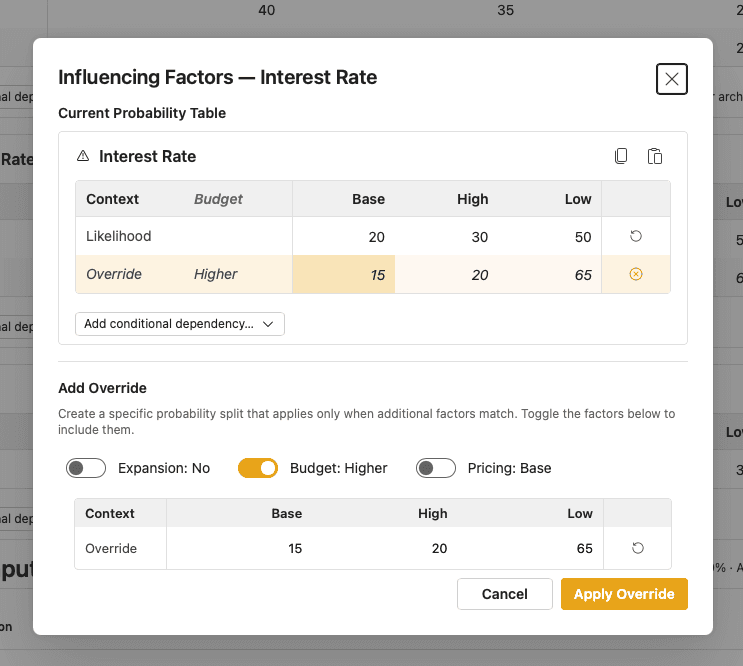
The screen is split into tabular input (full tables per uncertainty, good for overview and bulk edits) and tree input (the same model shown as a branching layout). From the tree you can add override-style exceptions: a special likelihood that only applies when a particular combination matches, without maintaining a giant grid of every possible mix by hand. Matching cases automatically pick up that override.
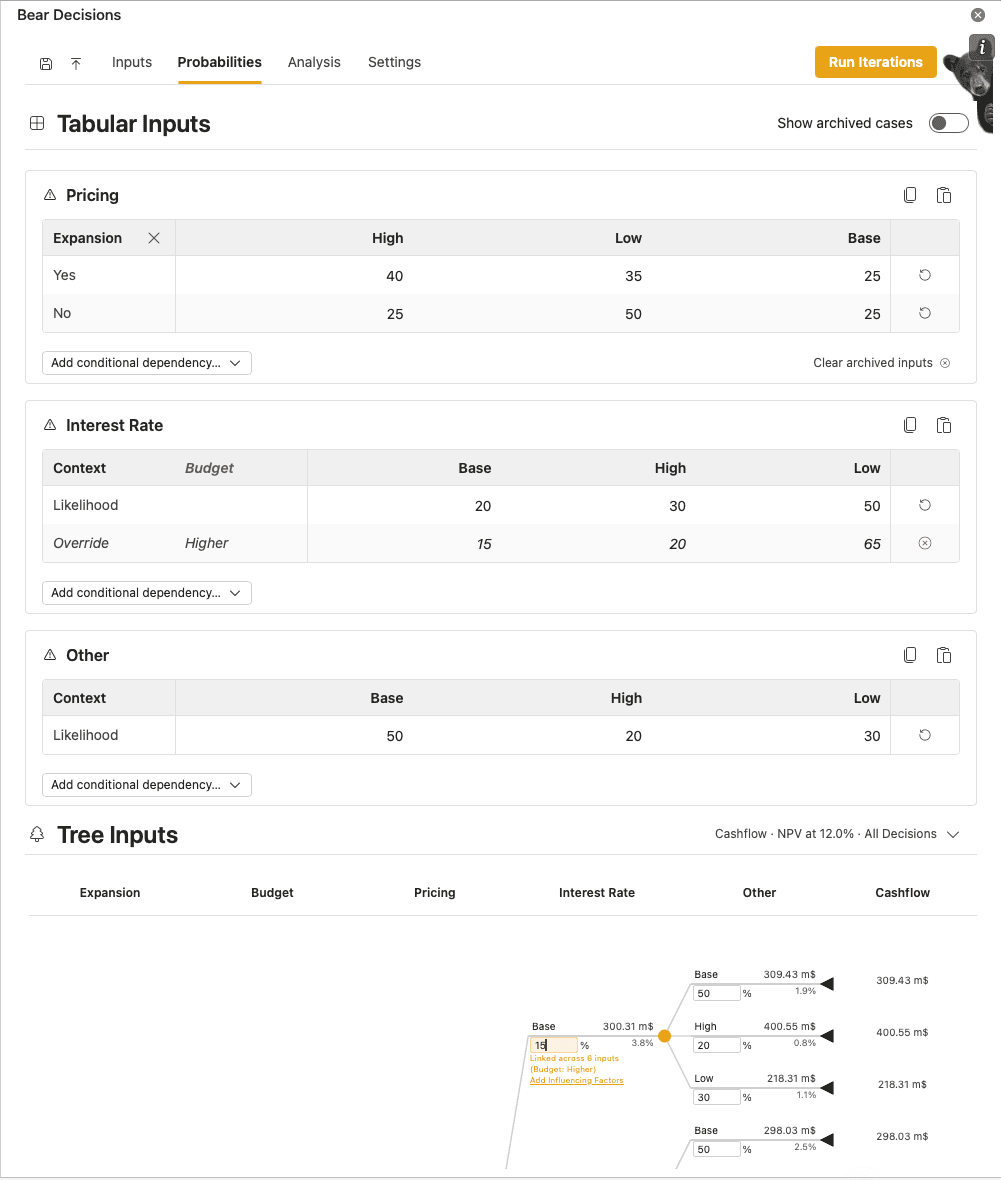
The tabular grids support copy and paste with Excel — including headers where needed — so you can edit in a spreadsheet and paste back. You can also sort columns inside the tables to reorder cases for review.
Archived inputs: If you remove a conditional rule and add it back later, Bear Decisions will automatically remember the numbers you used before - making it easy to test changes and revert with no headaches. To discard that stored setup and fall back to defaults, use the Clear archived inputs button on the bottom right of the tabular section for that uncertainty. After clearing, previously saved splits for that context are forgotten.
When you select or hover an editable likelihood in the tree, the UI shows which relationships that cell is tied to and how many matching cells you are updating at once. Clicking on the Add Influencing Factors button will open a modal where you can edit the table view or add an influencing-factor override without leaving the tree.
Probability guidelines:
- When you add an uncertainty, cases start with equal likelihoods until you change them.
- Each row of a split should represent a full picture of that uncertainty (100% across its cases). Normalization can run automatically on calculation, or you can align rows before you proceed.
- You can update probabilities any time; scenario-level weights refresh without rerunning the full iteration pass unless your underlying case values changed.
- Use business judgment, history, or expert input. When you are unsure, nudge likelihoods to see whether outcomes move enough to matter — precision is not always worth it if the decision stays the same.
Next Steps
Once you have set up your analysis structure, you will run calculations and interpret the results. The next section covers how to read dashboards and extract actionable insights from your scenario analysis.